
USB-C hub vs docking station comes down to where each one gets its power. A hub draws everything from your laptop through the same cable that carries your data, which makes it light and portable — the right choice for most single-screen setups. A docking station plugs into the wall, feeds power-hungry devices all day and charges your laptop through the same connection. For a desk with one external monitor, a mouse and a card reader, a hub between R249 and R399 covers it (our shelf prices, 30 October 2026). Add a second screen or a wired network that must survive load shedding, and the dock starts making sense.
South African stores make this decision harder than it should be: the two names get used interchangeably, and our own shelf is no exception. Our 11-in-1 unit is called a docking station, while a 9-in-1 with the same ports minus charging is called a hub — the label tells you less than the spec sheet. What follows is how to separate the two on what matters: where the power comes from, and what your laptop’s port can handle.
This post is a comparison: it explains how a hub and a docking station differ and which one you need for your setup, while the South African USB-C hub buying guidewalks through choosing and buying a hub — ports, power and our picks — once you have decided a hub is the right fit.
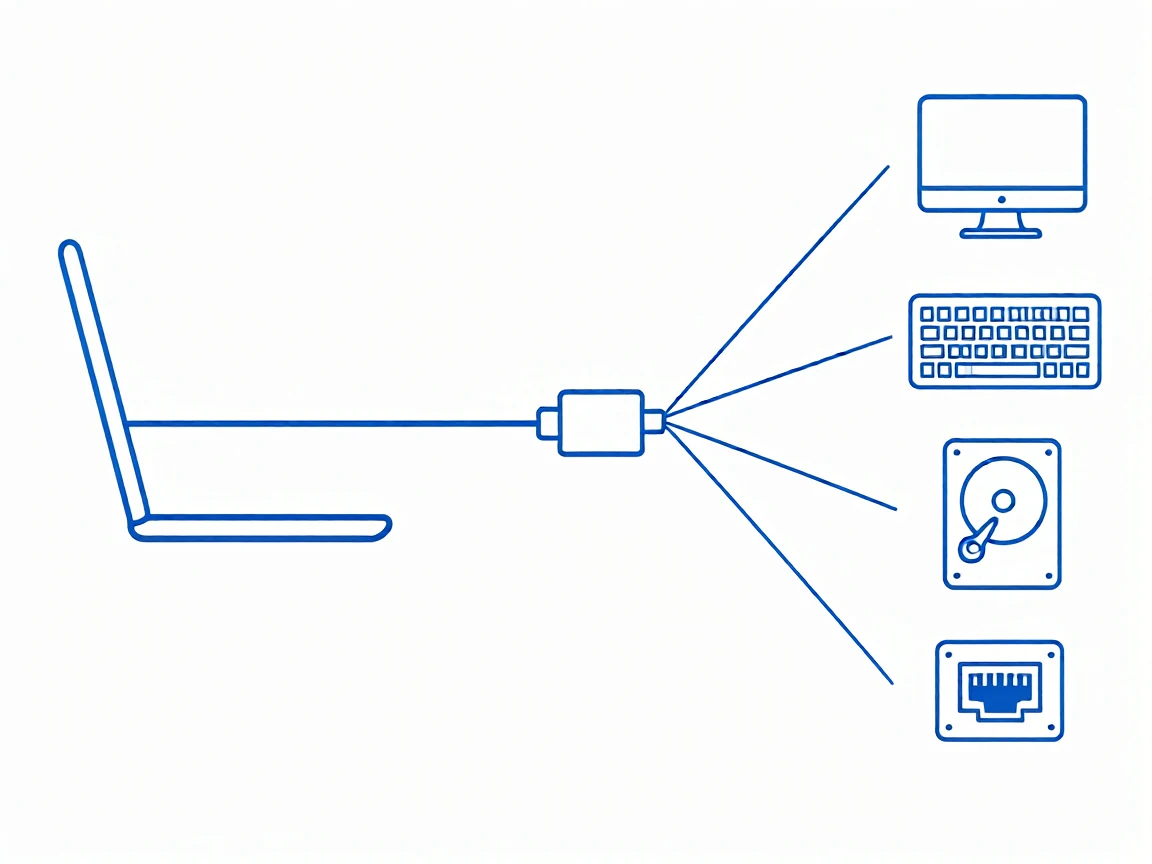
A USB-C hub is bus-powered: it borrows electricity from your laptop through the connection cable, together with
all the data and video traffic. A docking station carries its own mains adapter, feeds the devices on its own budget and — on models that support it — pushes charging power back into your laptop through the same single cable. That one difference drives almost every strength and weakness in the table below.
| USB-C hub (bus-powered) | Docking station (mains-powered) | |
|---|---|---|
| Power source | Draws from the laptop port | Own wall adapter |
| Laptop charging | No (passthrough at best) | Listed up to 100W on our 11-in-1 |
| Device budget | Shared with the laptop port | Independent of the laptop |
| Our shelf price | R119–R399 | R579 |
| Suits | One screen, mobile use | Fixed desk, two screens |
A USB 3.0 port is specified to supply up to 900mA at 5V — about 4.5 watts — and a bus-powered hub shares that single budget across everything plugged into it. Technical guides on hub power design agree on the figure, and on what happens when a device asks for more: drives drop offline mid-transfer and the hub itself can reset.
Within that 4.5-watt budget, the pattern is predictable once you know each device’s appetite:
If your workload is mostly the first row, a hub is all you need. If the third or fourth row describes your desk, that is where mains power stops being a luxury.
This step outranks the hub-vs-dock decision, because the wrong port ruins both: video over a USB-C connection requires DisplayPort Alt Mode support in the laptop port, and the connector shape proves nothing — laptops with two USB-C ports frequently support video on only one of them. Check your exact model on the manufacturer’s spec sheet for “DisplayPort Alt Mode”, “DP over USB-C” or “Thunderbolt” next to the port you plan to use; for the detailed port checks, see the South African USB-C hub buying guide.

Two cheaper checks: a charging-only USB-C cable cannot carry video even on a port that supports it. And if your laptop is an older machine with only rectangular USB-A ports, the USB-C conversation does not apply — a simple 4-port USB-A hub (R99 on our shelf) expands peripherals without video.
Every figure below comes from our live listings, checked 30 October 2026.
| Unit | Ports on board | Price (30 Oct 2026) |
|---|---|---|
| 4-port USB-A hub | 4 × USB-A | R99 |
| 4-in-1 USB-C hub | USB-A expansion through USB-C | R119 |
| 6-in-1 USB-C hub | 4K HDMI, USB 3.0, USB 2.0, SD/TF | R249 |
| 9-in-1 USB-C hub | 4K@60Hz HDMI, gigabit Ethernet, 3 × USB 3.0, SD/TF | R399 |
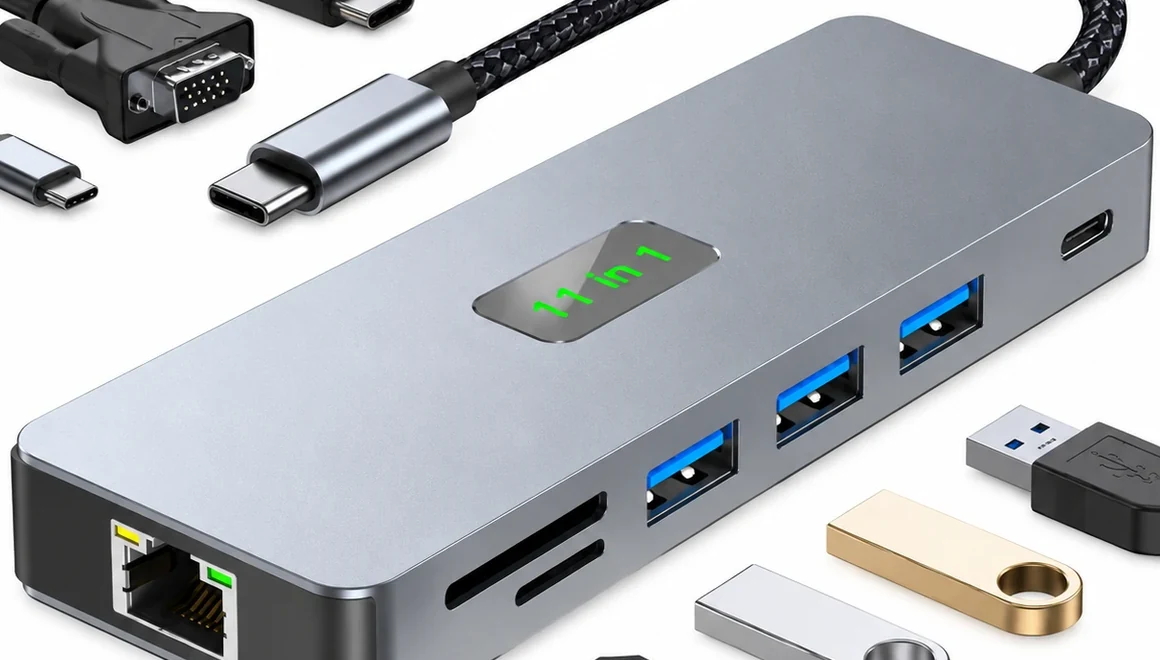
| 11-in-1 USB-C docking station | 4K@60Hz HDMI + VGA, gigabit Ethernet, 3 × USB 3.0, SD/TF, audio, charging listed at 100W | R579 |
Now compare that table with what other local guides assume. An EveTech buying guide, read 30 October 2026, frames a useful hub as something you find “in the R900 to R1,600 range” and full docking stations at R3,000 to R5,000. Those figures describe imported brand-name stock, and they are accurate for that segment — but they are not the floor. ADGear’s own 2026 South African guide lists a 5-in-1 USB-C dock at R349. The gap between R1,600 and R249 is not a quality gap at the low end — it is a distribution gap, and it is worth knowing before you budget.
Stage schedules give this comparison a local angle. A bus-powered hub has no electricity of its own: when your laptop powers down through an outage, everything hanging off the hub goes with it. A mains-powered dock keeps its own supply, so a wired gigabit Ethernet link stays up as long as the wall socket — and the router, ideally on a UPS — does. For evening work that depends on a stable connection through rotational cuts, that removes one class of mid-call failure. The 9-in-1 with gigabit Ethernet at R399 is the middle path.
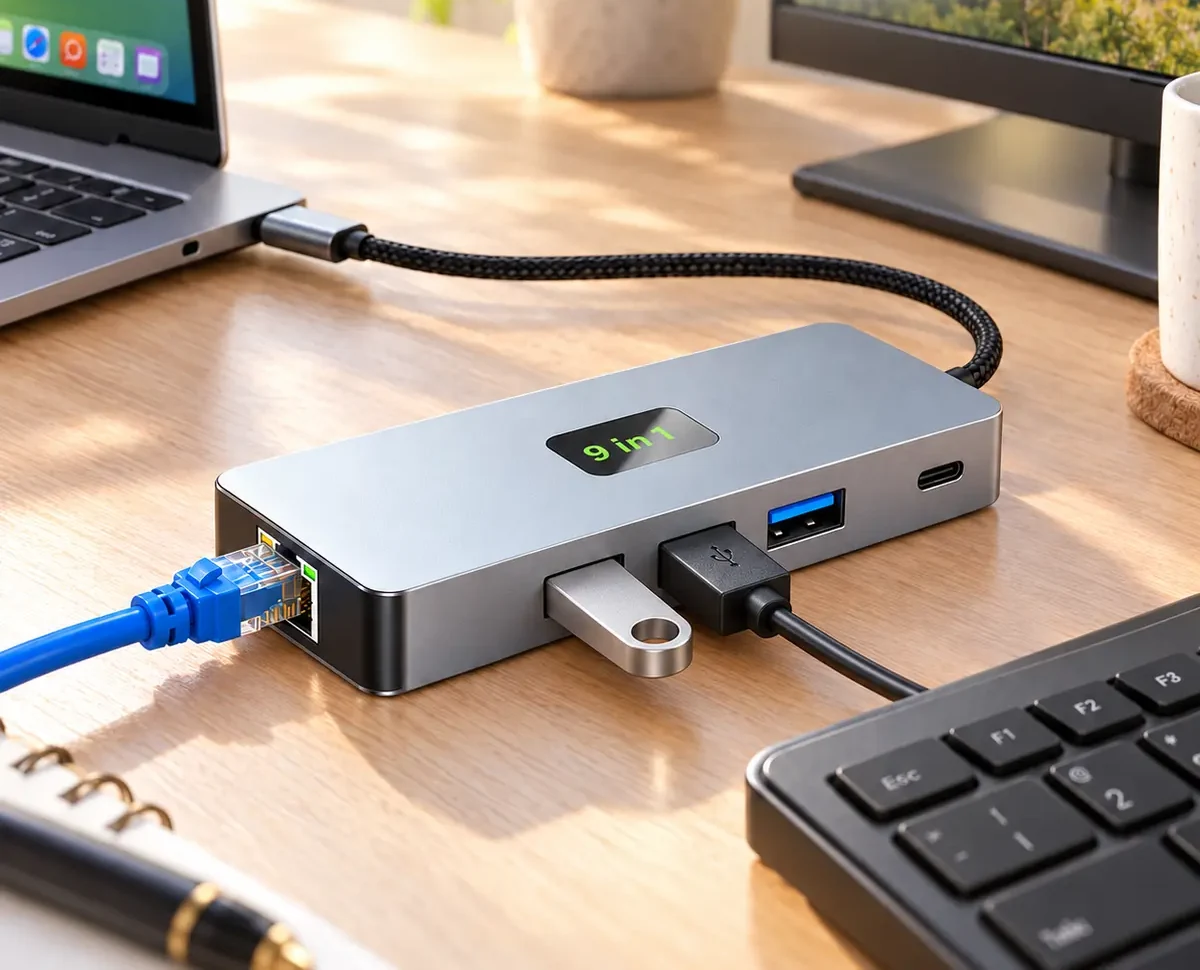
The mirror error is paying for bandwidth you will not use. Count the devices on your desk — monitor, keyboard, mouse, the occasional drive, a card reader. That is five or six port functions, and a 9-in-1 hub handles all of them on one cable. Our 11-in-1 earns the dock name for the second video output and the independent power; if you will not use either, the R399 hub is the same desk experience with R180 left in your pocket. And the honest reverse: dual-4K editing, multi-drive copying or a laptop that charges above 100W sits beyond our shelf — gaming laptops commonly want more. In that case look at Thunderbolt-class docks and expect the R3,000-and-up bracket.
No. A hub is bus-powered and portable; a docking station runs on its own wall adapter and typically adds laptop charging and a second video output. The power source settles it, not the port count.
Usually, if the drive is the only high-draw device connected. A 2.5-inch portable drive can pull close to a full USB 3.0 port’s 4.5W budget at spin-up, and 3.5-inch desktop drives need their own power adapter regardless.
On models with power delivery, yes — through the same single cable that carries video and data. Our 11-in-1 lists charging at up to 100W; laptops shipped with larger adapters will still want their own charger under heavy load.
Most often the cause sits upstream of the hub: a laptop USB-C port without DisplayPort Alt Mode cannot send video through any adapter. Check your exact port on the spec sheet before replacing hardware that works.
Decide in this order: what your laptop port supports, what your devices draw, then what your desk looks like. For most single-screen setups the hub wins on price, weight and simplicity, and the R249 to R399 band is the sweet spot. Move to a mains-powered dock when a second screen or outage-proof wired networking becomes part of the working day. The full range sits in our Hubs & Adapters category for comparison.
Discrepancy notice: our prices and stock reflect live listings on 30 October 2026 and competitor prices reflect their published pages on the same date; both change without notice, so confirm the current figure before relying on it. Power figures quoted from USB 3.0 specifications describe port limits, not measured results on specific hardware. Questions or corrections: support@potatotech.co.za.
Samsung Galaxy A14 screen replacement in South Africa: part prices, the 4G versus 5G model trap, why no OLED exists for this phone, and honest DIY difficulty.
Samsung Galaxy A05 screen replacement in South Africa: part prices, the A05s and A06 model traps, with-frame versus bare panel, and the honest DIY difficulty.

Compare Samsung Galaxy A-series screen part prices in South Africa, understand what changes the fitted repair cost, and check your exact model before ordering.
One Response