A screen, battery or charging-port replacement does not erase your phone’s data — but a phone that is already broken can fail completely while it sits on a repair bench, and then everything on it is gone. Backing up before you hand the device over takes about ten minutes and is the cheapest insurance in the whole repair process. This guide covers how to back up an iPhone and an Android phone properly, what each method actually captures and misses, and what to do when the screen is too damaged to use.
One warning first: how a repair shop treats your data depends on the shop and the job. Component-level work like a screen swap normally leaves storage alone, while board-level or liquid-damage work can involve it. Always ask before work starts, and know your passcode — most repairs cannot be verified without it.
What a backup does and does not save
The single most common mistake is assuming a green tick means everything is safe. It does not. Understanding what each method captures is what separates a real backup from a false sense of security.
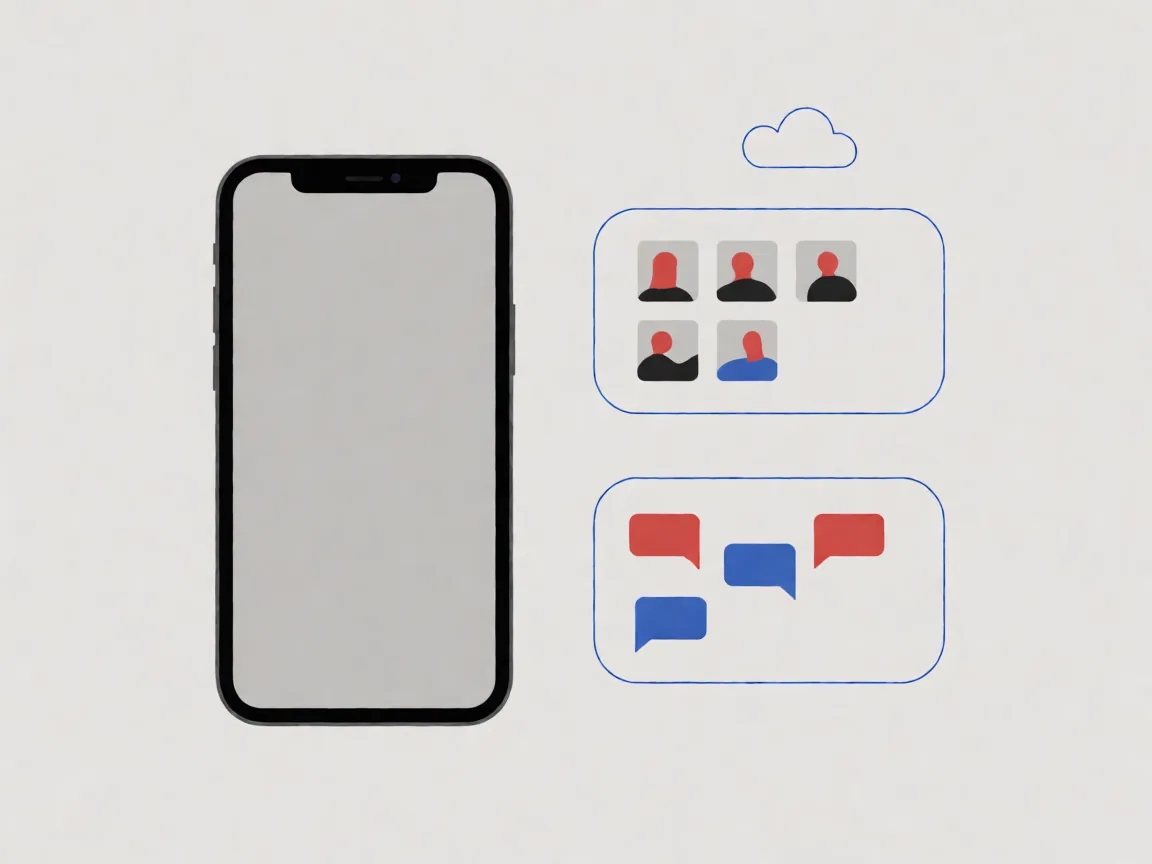
Synced is not backed up. Apple’s own documentation is explicit: information stored through iCloud syncing is kept current across your devices automatically, so it is not included in your iCloud backup. Contacts, calendars, notes and anything in iCloud Photos are synced. Your app data, device settings, home screen layout and messages live in the backup instead.
Photos are usually a separate system. Google states plainly that pictures and videos are backed up when you use Google Photos, separately from device data. On iPhone, iCloud Photos similarly syncs your library independently of the backup snapshot. Turn photo backup on separately or your picture roll is the one thing missing.
Not every app can back up everything. Google’s documentation carries the warning directly: not all apps can back up or restore all settings and data. For anything irreplaceable, check that app’s own export or backup instructions.
Free cloud tiers are small. iCloud includes 5 GB per account; Google backs up up to 15 GB at no charge for a Google Account. Both are shared with photos, mail and files, and a backup silently fails or stops partway when storage runs out.
Restoring has version limits. Google notes you cannot restore a backup from a higher Android version onto a phone running a lower one, and that restoring can take up to 24 hours. A backup you cannot restore onto the replacement device is not a backup.
How to back up an iPhone
Apple supports two routes, and doing both is reasonable before a repair.
Via iCloud. Go to Settings, tap your name, tap iCloud, then iCloud Backup. Turn on Back Up This iPhone. Apple’s documentation confirms iCloud backs up automatically each day while the iPhone is connected to power, locked and on Wi-Fi. To force one before a repair, tap Back Up Now. Then open Manage Account Storage to check the timestamp — this is the verification step people skip.
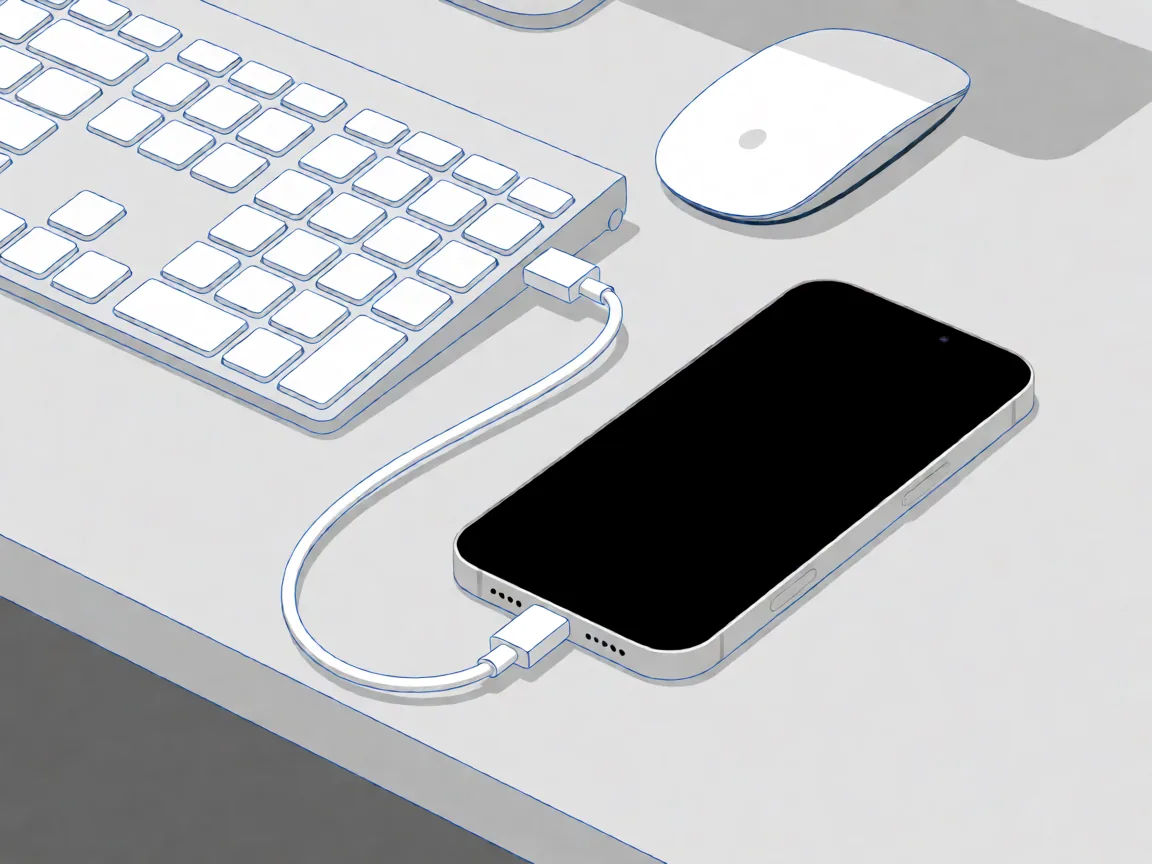
Via your computer. Connect with a cable, select the device in the Finder sidebar on Mac (macOS 10.15 or later; iTunes on older systems) or in iTunes on Windows, choose Back Up Now.
Turn on Encrypt local backup. Apple’s documentation is specific about what this adds: saved passwords, Wi-Fi settings, website history, Health data and call history are only present in an encrypted backup. Without that box ticked, those items are excluded. Note that encrypted backups still exclude Face ID, Touch ID and the device passcode itself.
Set a password you will keep. Once a backup is encrypted you need that password to restore from it. Losing the password means losing the backup.
How to back up an Android phone
On Android, open Settings, tap Google, then All services, then Backup under Backup and restore, and tap Back up now.
Check what will actually be included. Google’s documentation lists apps and app data, call history, contacts, device settings, and SMS and MMS. It also states some steps apply only to Android 9 and above, and that you cannot use backup on a personally-owned device set up for work only, or on a company-owned device.
Verify separately. Under Backup details you can review which data and apps are included. Do not trust the toggle — read the list.
Photos are their own job. Open Google Photos and confirm photo backup is switched on and has finished syncing. Device backup and photo backup are not the same switch.
Samsung adds its own layer. Samsung Cloud covers Samsung-specific data such as Samsung Notes and Samsung Internet bookmarks that Google backup does not. Running both costs nothing and closes the gaps.
Copy photos off the phone yourself. Connect by USB, choose file transfer mode, and copy the DCIM folder to a computer or drive. This produces physical copies that depend on no cloud service and no sync quota, which matters on entry-level handsets where the camera fills the available storage.
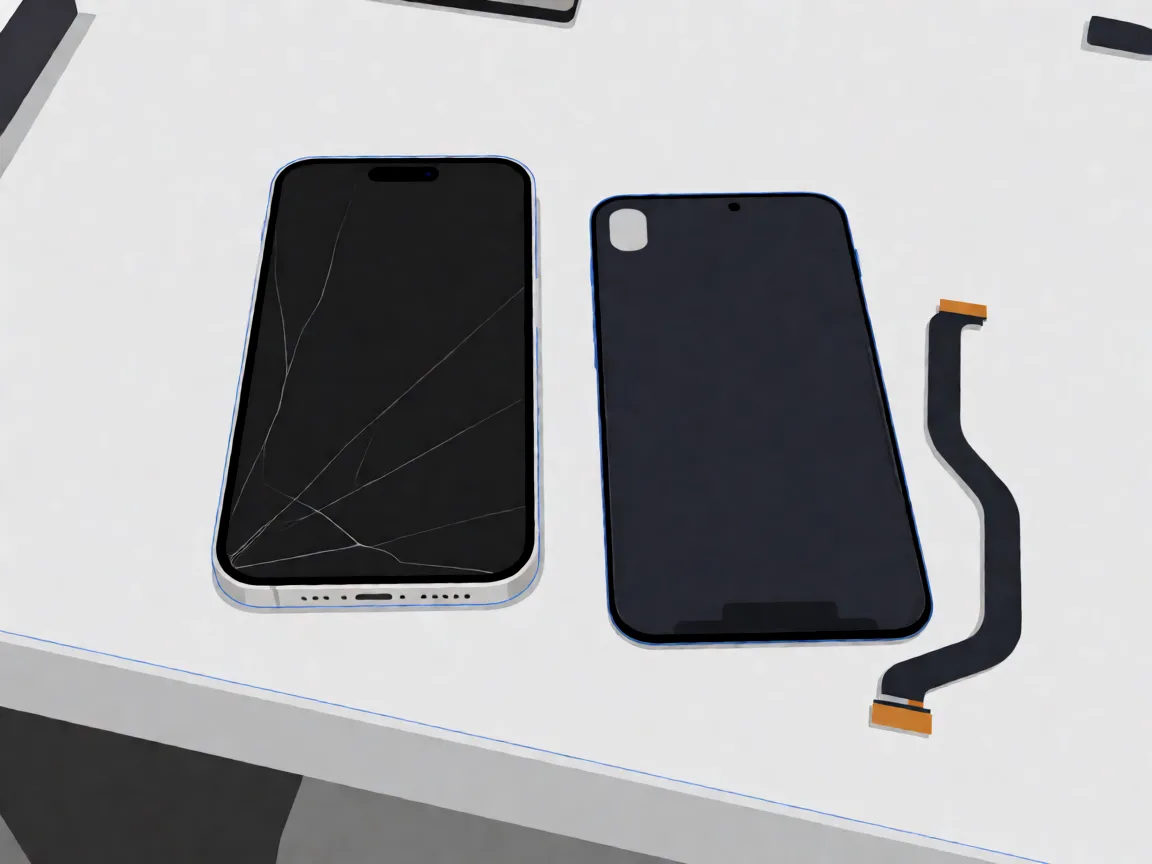
When the screen is too broken to use
This is the case where people give up, and it is often still solvable. Work down the list:
Touch dead but display alive. Connect to a computer and back up from there. You may only need to tap Trust This Computer blind, which sits roughly middle-right of the screen.
Touch dead, needs unlocking. A USB-C or Lightning mouse can usually drive the phone well enough to enter the passcode.
Screen black entirely. If the phone was previously trusted on that computer, a Finder or iTunes backup can run without any interaction with the display.
Will not power on at all. Tell the repair shop before any work begins, and say clearly that the data matters. A shop that knows will try to get the device booting far enough for a backup before doing anything irreversible. If they do not know, they cannot prioritise it.
What to do before you hand the phone over
Know your passcode, and your Apple ID or Google password. A repair that cannot be unlocked cannot be verified.
Leave Find My switched on. A standard repair does not need it off, and leaving it on protects the device.
Remove the case and screen protector if you want to keep them — a protector rarely survives a screen replacement.
Take the SIM and SD cards out if they matter to you, or ask that they be left in.
Mention anything unusual: previous repairs, a phone that has been wet, a battery that has swollen. It changes how the job is approached.
Disclaimer
Discrepancy notice: backup paths, included data and storage allowances change between operating system versions, and differ across manufacturers — confirm against your own device’s documentation before relying on any step. Repairer practices vary; how your data is handled depends on the shop and the work required, so confirm with the provider before any job starts. Questions or corrections are welcome via our Contact page or support@potatotech.co.za.
POTATOTECH publishes research-based guidance on electronics repair, replacement parts, tools and device compatibility for South African users.
Our content may reference manufacturer documentation, product specifications, technical repair resources and South African market information where relevant.
Where POTATOTECH has not independently tested a product or repair method, researched information is not presented as first-hand testing.
About POTATOTECH: /about-us/
Important
POTATOTECH provides information about replacement parts, repair tools and device compatibility.
POTATOTECH is not affiliated with or endorsed by device manufacturers unless explicitly stated. Product names, trademarks and brands belong to their respective owners.
Compatibility information is provided as guidance. Always confirm the exact device model, model number and relevant part specifications before selecting or purchasing a replacement part.
Repair information is provided for general informational purposes. Follow manufacturer guidance and appropriate safety precautions when carrying out repairs.
Samsung Galaxy A14 screen replacement in South Africa: part prices, the 4G versus 5G model trap, why no OLED exists for this phone, and honest DIY difficulty.
Samsung Galaxy A05 screen replacement in South Africa: part prices, the A05s and A06 model traps, with-frame versus bare panel, and the honest DIY difficulty.
Compare Samsung Galaxy A-series screen part prices in South Africa, understand what changes the fitted repair cost, and check your exact model before ordering.