
Choosing a monitor in South Africa used to be simple: you picked the biggest screen you could afford at Takealot and hoped it matched your laptop. Today the smarter move is matching the panel to what you actually do – and understanding how Rand prices, load-shedding resilience, and local stock availability shape every decision.
The South African monitor market in 2026 sits in an interesting window. Budget 24-inch 1080p panels start around R1,500, while a proper 27-inch 2K 165Hz gaming display lands in the R2,500–R3,500 bracket. Mid-range picks from Evetech, Wootware and Loot routinely undercut big-box retailers by R500 to R1,500. But the single biggest mistake buyers make is ignoring the rest of the setup: a 165Hz panel is useless if your GPU can’t push 165 frames, and a 4K screen will look soft if you’re sitting 40 cm from a 24-inch panel.
This guide walks through the three decisions that matter most — screen size, resolution, and refresh rate — and shows five real POTATOTECH models so you can see how the specs map to price and to what you actually do at your desk.
If you remember only one thing, make it this: your computer, cable, and display settings decide whether a monitor runs at its advertised resolution and refresh rate. A 165Hz panel only helps if your laptop or graphics card can push 165 frames per second to it. Get that wrong and you’ve spent money on a feature you never use.
South Africa’s monitor landscape is shaped by three local factors that don’t show up in generic buying guides.
Exchange-rate sensitivity. All monitors are imported and priced against the US dollar at wholesale level. When the Rand weakens, local retail prices shift 5% to 15% within two to four weeks. The right time to buy is when the rand is relatively strong — a R10,000 display can cost R500 to R1,500 less at the right moment. Check price history on prices. Check before committing.
shedding load shedding and power draw. A 24-inch monitor typically draws 20 to 40 watts; a 27-inch at similar specs draws 30 to 50 watts. That difference matters when you’re on a UPS or inverter during Stage 4+ load shedding — a modest 600VA unit can keep a 24-inch screen running for an hour or more, buying enough time to save your work. A 27-inch 4K model may push the same UPS to its limit faster.
Where South Africans actually buy. The main online retailers — Takealot, Evetech, Wootware, Loot, Incredible Connection, and Makro — carry overlapping but not identical stock. Gaming-focused stores like Evetech and Wootware tend to have the deepest selection at competitive prices; Takealot wins on delivery speed and return ease. Price comparison sites like PriceCheck and Pricewatch let you cross-reference the same model across stores before you buy.
A quick benchmark of current 24-inch 1080p prices across SA retailers puts most entry-level panels between R1,800 and R2,800. The 27-inch 2K 165Hz segment — where the best value sits — ranges from R2,500 to R5,500 depending on brand and panel quality. Budget monitors under R1,500 often use TN panels with poor colour and narrow viewing angles; spend at least R2,000 for an IPS panel if you want text that stays sharp from any angle.
The two most common desktop sizes are 24-inch and 27-inch. A 24-inch monitor suits smaller desks, study corners, and everyday tasks like documents, email, and browsing. A 27-inch screen gives you more room for spreadsheets side by side, creative work, and media.
arm, a The desk depth matters more than most buyers realise. On a shallow desk (less than 60 cm), a 27-inch monitor can feel too close, forcing you to crane your neck. A 24-inch panel at the same distance feels comfortable. If your desk is deeper or you plan to mount the monitor on an arm, a 27-inch one opens up nicely.
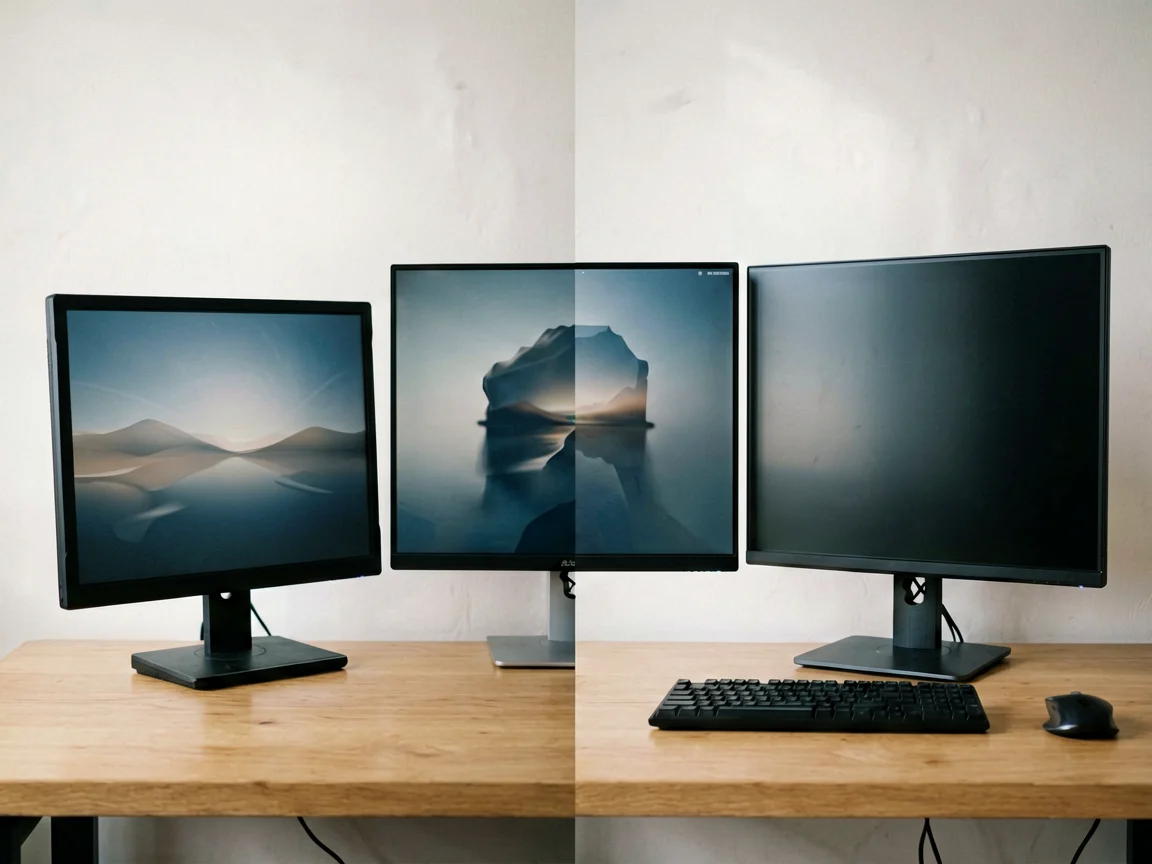
For South African students and hybrid workers, the 16-inch portable monitor has become a genuine second-screen staple. Models like the Acer PM161Q J (R2,499 at Takealot) prove that a 700-gram, USB-C-powered display can fit in a backpack and still deliver a crisp 1080p image. The POTATOTECH 16-inch portable at R889 is an even more aggressive entry point for a dedicated second screen.
Under ‘Display resolution’, resolution is how many pixels fill the screen. More pixels mean sharper text and images, especially on a larger panel. The full pixel breakdown is explained under ‘Display resolution’ on Wikipedia.
The most important rule: pair the resolution with the right screen size. A 24-inch 1080p panel looks sharp because the pixels are dense enough. A 27-inch 1080p panel starts to look soft because the same pixel count is spread over more space — you can see individual pixels at a normal viewing distance. That is why the 27-inch models in this guide use 2K or 4K. A 24-inch 1080p stays crisp; a 27-inch needs at least 2K to match that sharpness.
When does 4K actually make sense? If your work involves photo editing, video editing, or detailed spreadsheets, or you sit more than 60 cm from the screen, 4K is worth the premium. For general office work and browsing, 2K on a 27-inch panel hits the sweet spot — noticeably sharper than 1080p without the GPU and cable demands of 4K.
| Work: Resolution | Pixels | Best screen size | Best for | POTATOTECH model |
|---|---|---|---|---|
| 1080p (Full HD) | 1920 x 1080 | 24″ | Everyday office, study, esports | 24″ FHD 100Hz, 24″ 165Hz, 16″ portable |
| 2K (QHD) | 2560 x 1440 | 27″ | Gaming plus work, sharper detail | 27″ 2K 165Hz |
| 4K (UHD) | 3840 x 2160 | 27″+ | Text, design, media, maximum detail | 27″ 4K UHD |
A quick rule: pair a higher resolution with a graphics card and cable that can drive it. Your device must support 4K output to see 4K, and USB-C display only works if your laptop’s Type-C port carries video. A 2K 165Hz panel needs DisplayPort 1.2 or higher or HDMI 2.0 — older HDMI 1.4 ports top out at 2K at 60 Hz.
The refresh rate (measured in Hz) is how many times per second the screen redraws the image. A higher number feels smoother, most visibly in fast movement – games, scrolling, and cursor motion. The refresh rate on Wikipedia covers the technical background.
Here’s what most guides don’t tell you: the jump from 60Hz to 100Hz is more noticeable in daily use than the jump from 100Hz to 165Hz for non-gamers. If you’re doing spreadsheets, writing documents, and browsing, 100Hz will feel like a genuine upgrade. 165Hz is only going to matter if you play fast-paced games like CS2, Valorant, or Apex Legends.
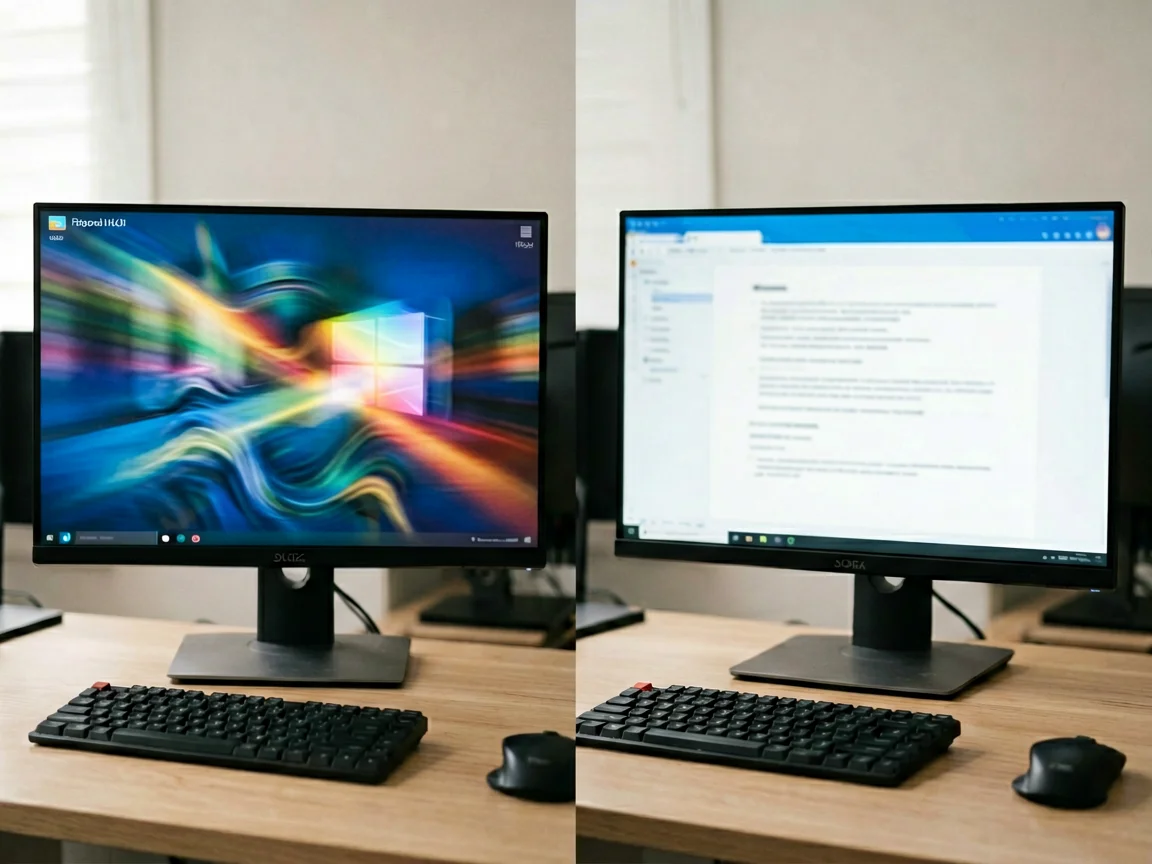
165 Hz, and remember: 165 Hz only applies if your PC, graphics card, cable, and display settings all support it. DisplayPort is the best cable for high refresh rates. HDMI works too, but you need HDMI 2.0 or higher for 2K at 165 Hz and HDMI 2.1 for 4K at high refresh. If you plug a 165Hz monitor into an older HDMI 1.4 port, it will drop to 60Hz — and you’ll never know why unless you check the connection.
Panel technology determines colour accuracy, viewing angles, and contrast — three things that matter just as much as resolution and refresh rate. Most monitors in the POTATOTECH range use IPS panels, and here’s why that matters for South African buyers.
| Panel type | Colour accuracy | Viewing angles | Contrast | Best for | Typical SA price range |
|---|---|---|---|---|---|
| IPS | Excellent | Wide (178°) | Good (1000:1) | Office, design, general use | R1,800 – R5,000+ |
| VA | Good | Good | Excellent (3000:1) | Movie watching, dark-room gaming | R2,000 – R6,000 |
| TN | Poor | Narrow | Moderate | Competitive esports only (budget) | R1,200 – R2,500 |
IPS (In-Plane Switching) is the default recommendation for most South African buyers. Colours stay accurate from any angle, text is sharp, and the panels have improved enough in contrast that they’re no longer the washed-out screens of ten years ago. If you work on spreadsheets, write reports, or share your screen in a meeting, IPS is the safe choice.
VA (Vertical Alignment) delivers deeper blacks and higher contrast ratios, making it ideal for movie nights and dark-room gaming. The trade-off is slightly slower response times and colours that shift when you view from the side. A VA panel makes sense if your monitor doubles as a TV replacement and you watch a lot of content.
TN (Twisted Nematic) panels are the cheapest and fastest, but colours look washed out and viewing angles are narrow. You’ll only find TN panels on budget monitors under R2,000. For anything beyond pure competitive gaming at the lowest price, skip TN and go IPS.
Ports decide what you can plug in. Check your computer’s outputs before buying — this is where most compatibility issues happen.
Loadshedding tip: If you’re powering your setup from a UPS or inverter during outages, a USB-C single-cable monitor like the 16-inch portable is more efficient than a 24-inch or 27-inch model that draws power from a separate mains adapter. Fewer cables, fewer power points, less to unplumb when Stage 6 hits.
Here’s how the five monitors in the POTATOTECH range stack up against each other and against typical SA market prices.
| Model | Size / Resolution / Refresh | Ports | POTATOTECH price* | Typical SA market price** | Best for |
|---|---|---|---|---|---|
| 24″ FHD 100Hz | 24″ / 1080p / 100Hz | HDMI, VGA | R1,419 | R1,800 – R2,500 | Office, study, older PCs |
| 24″ 165Hz FHD Gaming | 24″ / 1080p / 165Hz | HDMI, DP | R4,999 | R2,300 – R4,500 | Esports, fast PC gaming |
| 27″ 2K 165Hz Gaming | 27″ / 2560×1440 / 165Hz | HDMI, DP | R2,989 | R2,500 – R5,500 | Gaming plus work, sharp detail |
| 27″ 4K UHD | 27″ / 3840×2160 / 60Hz | HDMI, DP | R2,469 | R4,000 – R6,500 | Office, design, media |
| 16″ Portable | 16″ / 1080p / 60Hz | USB-C, HDMI | R889 | R1,500 – R2,500 | Second screen, travel |
*POTATOTECH prices include local warranty and South African stock. **Typical SA market prices are averages across Takealot, Evetech, Wootware, and Loot as of mid-2026; actual prices vary by retailer and sale events.
A few observations worth noting:
The right monitor depends on your desk, your device, and what you do most. Here’s a quick decision tree:
South African tech retailers run predictable sale cycles. If your purchase isn’t urgent, timing can save you R500 to R2,000 on any monitor.
R1,666 – NoPayJustNow and similar BNPL options are widely available for purchases from Evetech, Wootware, and Loot. A R4,999 monitor splits into three interest-free payments of R1,666 – no credit check is required. This is genuinely useful for students and young professionals who want a better monitor now and can spread the cost across the month.
Once the box arrives, setup takes about 15 minutes:
If the picture looks stretched or the refresh seems low, the cause is almost always the cable, the source setting, or a driver — not the panel itself. Check your cable first: an old HDMI 1.4 cable will cap a 2K 165Hz monitor at 60Hz, making the panel feel far worse than it actually is.
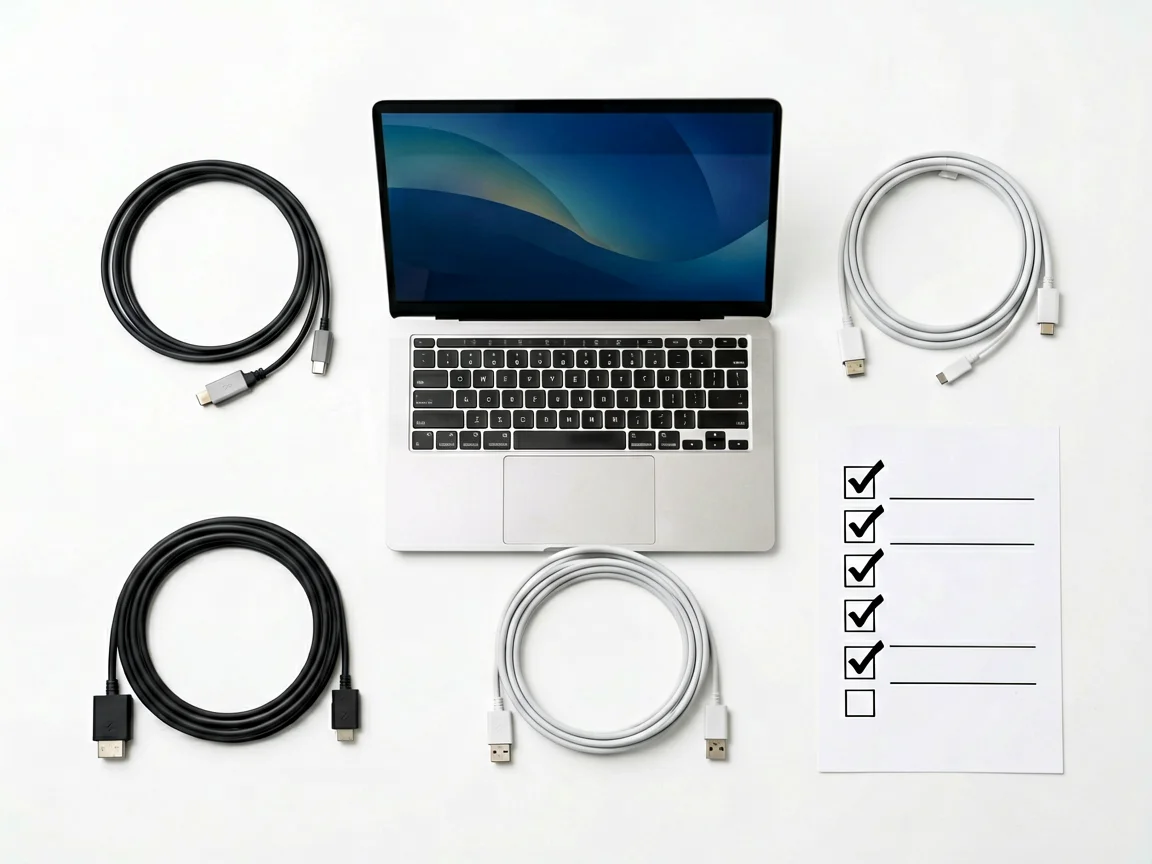
Don’t skip these checks — they’re where most returns and disappointments happen:
For competitive or fast-paced PC gaming, yes — motion is clearer and input latency feels lower. For office work, study, and media, 100Hz or 60Hz is plenty. The jump from 60Hz to 100Hz is the one most people notice in daily use.
No. The laptop’s port, graphics hardware, cable, and settings must all support 4K output. Most laptops from 2020 onwards with USB-C can drive a 4K display at 60Hz. Older HDMI-only laptops typically top out at 1080p or 2K at 60Hz.
Use DisplayPort where possible for 165Hz PC gaming and a cable rated for the resolution you need. HDMI 2.0 handles 2K at 165Hz; HDMI 2.1 is needed for 4K at high refresh. An old HDMI 1.4 cable will limit you to 60Hz regardless of what the monitor supports.
Not always. A 27-inch panel needs more desk space and a capable source; a 24-inch or portable one may fit your setup better. The best monitor is the one matched to your desk’s depth, your device’s outputs, and what you do most on your screen.
A 24-inch 1080p IPS panel at 75Hz to 100Hz hits the sweet spot for most university students — R1,500 to R2,500; lightweight enough for a dorm room; and sharp enough for hours of reading and writing. The POTATOTECH 24″ FHD 100Hz at R1,419 is a strong option at that end of the market.
Yes — a monitor draws far less power than a desktop PC. A 24-inch IPS panel at 30 watts can run for an hour or more on a modest 600VA UPS, buying enough time to save your work during Stage 4 to 6 outages. Pair it with a small UPS and you’re covered for most scheduled outages.
Load shedding: The right monitor in South Africa isn’t the biggest screen you can find—it’s the one matched to your desk, your device, your load shedding reality, and what you actually do on that screen all day. Start from size, then resolution, then refresh rate, and always check your ports before you order.
The five POTATOTECH monitors in this guide cover the full range from budget office use to high-refresh gaming to portable second-screen setups, all shipping from local South African stock. Prices and specifications are as of the time of writing — check the product page for current stock, warranty terms, and colour options before ordering.
Information Notice: Product prices, availability and shipping options may change. This article is for general informational purposes. For current availability, specifications or delivery details, please use our Contact Us page.
Related guide: Already own a monitor that shows no signal? See our step-by-step fix for a monitor with no signal (HDMI and cable checks).
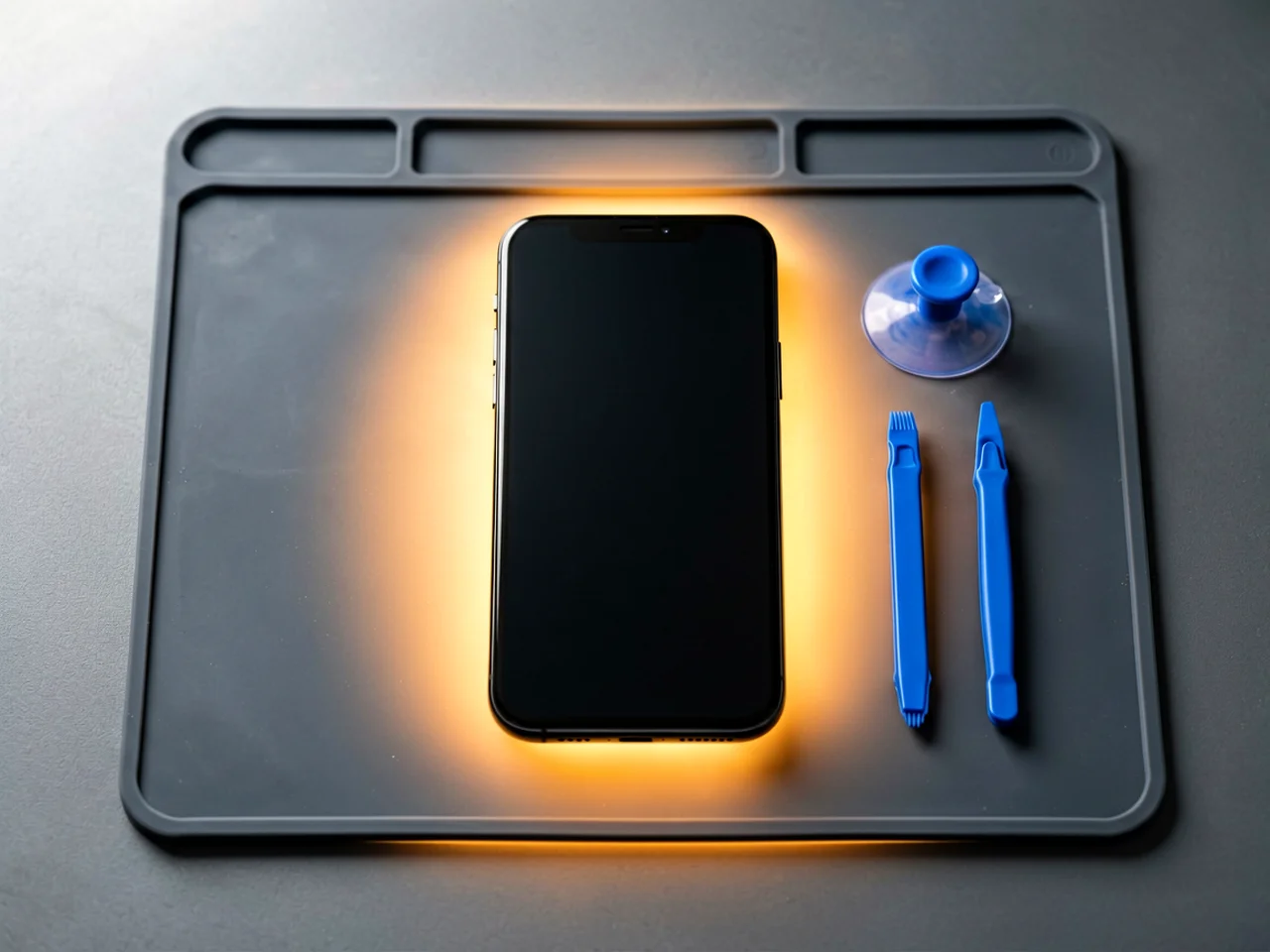
Most cracked phone panels don’t come from a shaky hand. They come from the wrong temperature. Heat the adhesive too little and the glass fights you until it snaps. Heat it too much, or in one spot, and you cook the panel underneath instead — which is how “repair” turns into “replace”. This guide is […]

You tap an app and nothing happens for ten seconds, then the whole screen freezes mid-animation. You wait, you tap again, the phone buzzes once and sits there. Sometimes a restart clears it for a day, sometimes it freezes again as soon as you open WhatsApp, and sometimes it started after an update or when […]

You open Maps or your taxi-hailing app, and the blue dot never settles, or it places you three streets away. You stand outside with a clear sky above you, and the phone still takes minutes to lock on, or it locks on and then drops your position into the middle of a field. Sometimes the […]
2 responses