
Your PC is on. The tower lights are blinking, the fans are spinning, and everything sounds normal. But the monitor stays black. No logo, no error message, not even a faint glow. Just darkness. This is one of the most common — and most frustrating — problems a South African office worker, student, or gamer can face. And it is almost always fixable without calling a technician.
In this guide, I walk through every real-world reason your monitor might be refusing to show a signal, plus the actual steps to diagnose and fix each one. You do not need special tools, technical experience, or an expensive repair visit. Most fixes take under ten minutes. Some of the fixes here even apply when you are stuck in load shedding and have to work from a battery-powered laptop instead of a full desktop setup.
Before you start swapping cables or restarting your computer, it helps to know where the problem actually lives. A monitor showing no signal is almost never a broken monitor. In the vast majority of cases, the issue is one of these:
Once you know which category your problem falls into, the rest is straightforward elimination.
Start with the simplest check first. Loose cables are responsible for the majority of no-signal complaints. It sounds almost too simple to be true, but people replace monitors, buy new graphics cards, and spend hours troubleshooting before they eventually discover that the HDMI cable simply was not pushed all the way in.
If you are using an adapter – such as USB-C to HDMI on a laptop – try removing the adapter and connecting the monitor directly with a full-size cable. Adapters are a frequent single point of failure in South African homes and offices, especially when you are juggling multiple devices on a single desk.
If the cable check does not fix the problem, move on to the next step.
Most modern monitors have multiple input options — HDMI 1, HDMI 2, DisplayPort, VGA, and sometimes USB-C. If the monitor is set to the wrong input, it will not show the signal even though the cable and the PC are working perfectly. This is especially common when you connect and disconnect different devices regularly.
On some monitors, the input source menu is buried under two or three layers of on-screen menus. If your monitor feels complicated, look up the exact model on YouTube — most brands have a two-minute walkthrough video that shows you exactly where the source button lives. This step alone resolves a surprising number of no-signal cases.
Cables fail silently all the time. The outer jacket may look fine, but an internal wire can break after repeated bending, especially if the cable runs through a tight space under a desk or gets stepped on. A broken cable produces exactly the same symptom as a dead monitor: no picture, no signal message, just blackness.
To test this, borrow or swap in a known-good cable and try again. If you do not have another cable handy, check whether your monitor has more than one type of input. For example, if your current cable is HDMI and it is not working, try connecting with a DisplayPort cable instead – or use a VGA cable if your monitor still supports the older standard. Getting a picture on a different input confirms that the monitor is fine and the original cable or cable path was the problem.
South African context note: If you live in an area with frequent load shedding, power surges can degrade cables and connectors faster than normal. Cheap extension leads and unregulated power strips also increase the risk of signal degradation over time. If you are serious about keeping your monitor connection stable, a basic surge protector with cable management makes a real difference.
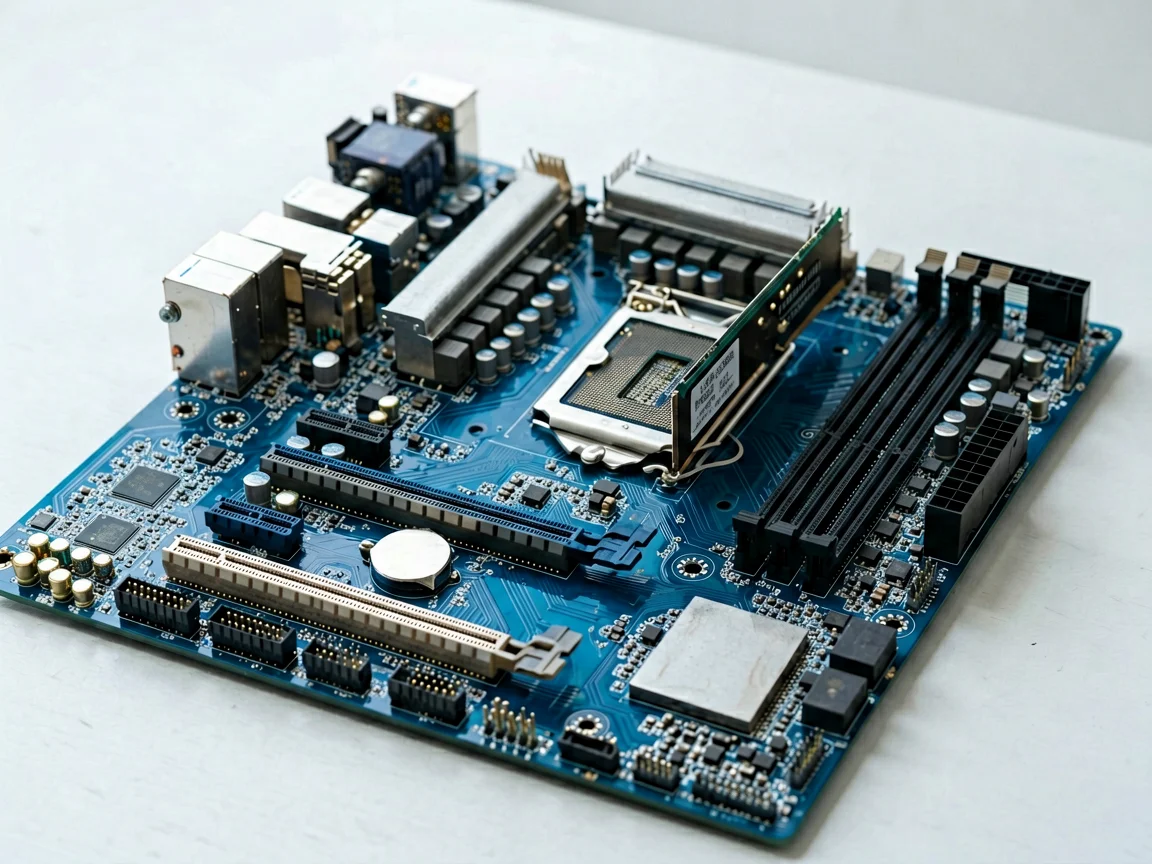
If the cable and input source are both correct and you still get no signal, the problem may be the PC itself, not the monitor. The computer might be on, but not actually sending a video signal to the display. This can happen for a few reasons:
If your PC has both integrated graphics and a dedicated GPU, make sure the monitor is connected to the dedicated GPU and not the motherboard port. Many desktops default to the motherboard when a GPU is installed, which means the GPU output is inactive by default.
This step tells you definitively whether the monitor itself is healthy. Connect the same monitor to a different computer, a laptop, a game console, or even a streaming stick if the monitor has HDMI input. If the second device produces a picture, the monitor is working fine, and the original PC is the problem. If the second device also shows nothing, the monitor or its cable is likely at fault.
This test is especially useful in South Africa, where many people share one monitor between a desktop and a laptop or use a single display with multiple devices throughout the day. It removes the guesswork and saves you from replacing a perfectly good monitor.
If you have gone through all the steps above and the monitor still shows no signal, you are dealing with something more serious. The most likely culprits at this stage are:
At this point, professional diagnosis is the right call. But before you hand your machine over to a repair shop, consider whether the cost of repairing the current monitor or PC makes sense compared with buying a replacement. In South Africa, a decent new monitor from R1,419 for a basic 24-inch FHD 100Hz model to R4,999 for a 24-inch 165Hz gaming display can sometimes be cheaper than replacing a faulty backlight or GPU, especially when you factor in labour costs and turnaround time.
For local repair options, POTATOTECH’s repair guides page has step-by-step resources that walk you through common hardware diagnostics, and their monitor and laptop parts range covers replacement panels, backlights, and power boards if you are comfortable doing the work yourself.
Avoiding this problem altogether is easier than fixing it after the fact. Here are the habits that actually matter:
The single most effective habit you can build is the “check the cable first” rule. Before you assume anything is broken, always verify that every cable is seated firmly and that the monitor is on the correct input. Nine times out of ten, that is all it takes.
If your monitor is already past repair or you are tired of troubleshooting the same connection problems, the next decision is usually what to buy instead. In South Africa, the monitor market is surprisingly wide, and the right choice depends entirely on what you are using the screen for.
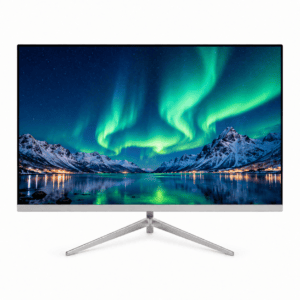
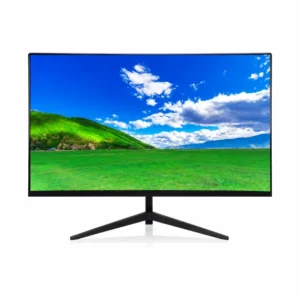
At POTATOTECH, our current monitor range covers the most common needs without forcing you into expensive brand premiums:
All prices shown are current at time of writing and include local stock availability. If you are budgeting carefully, the 24-inch FHD 100Hz model offers the lowest entry point, while the 27-inch 2K 165Hz sits at a sweet spot between gaming performance and everyday productivity.
It means the monitor is receiving power but not receiving a video signal from the PC. The monitor itself is usually fine. The problem is between the monitor and the computer — most commonly a loose cable, the wrong input source selected, or the PC failing to output video.
In the majority of cases, the fix takes between two and ten minutes. Reseating cables, switching the input source, and trying a different cable are quick checks. More involved fixes like reseating RAM or replacing a graphics card take longer but are still usually under an hour for anyone with basic DIY experience.
Yes. A failing PSU can provide enough power to spin the case fans and light up LED indicators while failing to deliver stable power to the graphics card or motherboard video outputs. If your PC turns on but nothing appears on screen, and you have ruled out cables and input settings, the PSU is a plausible culprit.
Indirectly, yes. Sudden power loss can corrupt BIOS settings, reset boot sequences, or leave hardware in a confused state that looks like a display failure. A basic UPS or a surge protector with standby switching reduces this risk significantly. If your monitor shows no signal right after a power cut, try a full power cycle — switch everything off, wait thirty seconds, then power on again.
It depends on the fault. A loose cable or wrong input source costs nothing to fix. A backlit panel failure or power board issue may cost close to the price of a used monitor to repair. When the repair estimate approaches the price of a new entry-level monitor — which starts around R1,419 for a basic 24-inch model at POTATOTECH — replacing the unit is often the more sensible choice.
POTATOTECH stocks a range of budget-friendly monitors across all common use cases, from basic office displays to gaming-focused panels. All units are locally stocked with fast domestic delivery. Visit the monitors category page to compare specifications and current prices.
If your monitor shows no signal, go through these steps in order:
Most no-signal problems are solved in the first three steps. The rest is confirmation and prevention. If you keep a spare cable on your desk and check your input source once in a while, you will rarely be stuck with a black screen for more than a few minutes.
Information Notice: Product prices, availability and shipping options may change. This article is for general informational purposes. For current availability, specifications or delivery details, please use our Contact Us page.
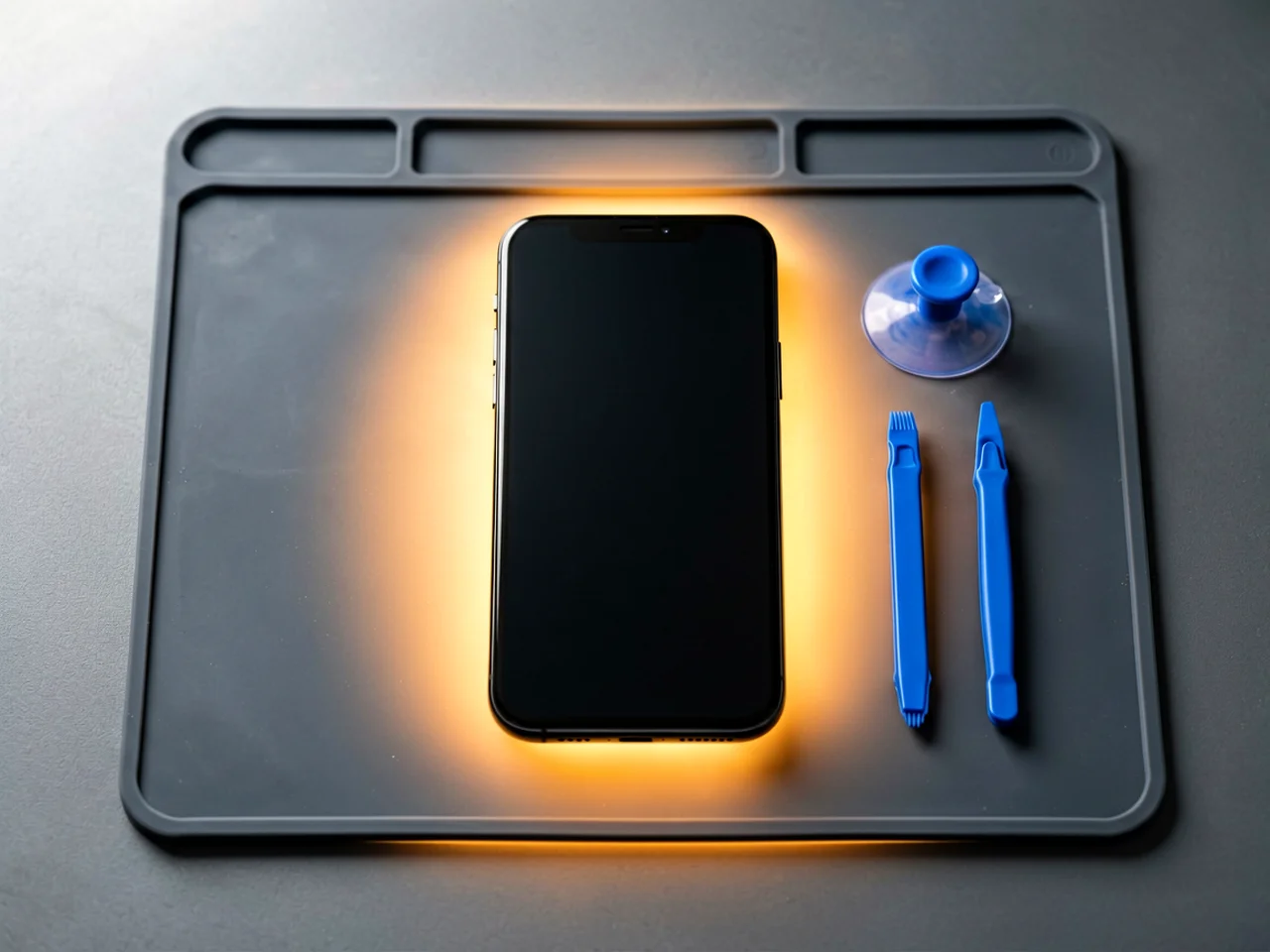
Most cracked phone panels don’t come from a shaky hand. They come from the wrong temperature. Heat the adhesive too little and the glass fights you until it snaps. Heat it too much, or in one spot, and you cook the panel underneath instead — which is how “repair” turns into “replace”. This guide is […]

You tap an app and nothing happens for ten seconds, then the whole screen freezes mid-animation. You wait, you tap again, the phone buzzes once and sits there. Sometimes a restart clears it for a day, sometimes it freezes again as soon as you open WhatsApp, and sometimes it started after an update or when […]

You open Maps or your taxi-hailing app, and the blue dot never settles, or it places you three streets away. You stand outside with a clear sky above you, and the phone still takes minutes to lock on, or it locks on and then drops your position into the middle of a field. Sometimes the […]
One Response