POTATOTECH is currently in pre-launch. Product information and repair guides are available to browse. Online ordering and payment are not yet available.

How to Connect a Wireless Mouse to a Laptop (South Africa)

To connect a wireless mouse to a laptop, plug its USB dongle into a USB port and slide the mouse’s power switch to ‘on’ — Windows installs it automatically within seconds. If your mouse is Bluetooth-only, turn on the mouse, hold its pairing button until the light blinks, then add it under Settings → Bluetooth & devices. Both routes take under a minute.

This guide covers both methods step by step on Windows 10 and 11, which one you should pick, and what to check when the cursor simply refuses to move. The steps apply to any standard wireless mouse — including the Yelandar wireless mouse we ship here in South Africa.

Key Takeaways

  • USB dongle mice (2.4 GHz): plug in the receiver, switch the mouse on — no pairing needed.
  • Bluetooth mice: hold the pairing button 3–5 seconds until the light blinks, then add the device in Windows settings.
  • No dongle and no Bluetooth on old laptops? A USB-C or USB-A Bluetooth adapter solves it.
  • Cursor dead? Check the power switch and batteries first — they cause most “broken” mice.
  • Store the dongle inside the mouse’s battery compartment when travelling so it does not get lost.

Which Type of Wireless Mouse Do You Have?

Before anything else, flip the mouse over and look underneath. Wireless mice come in two kinds, and the connection steps are completely different:
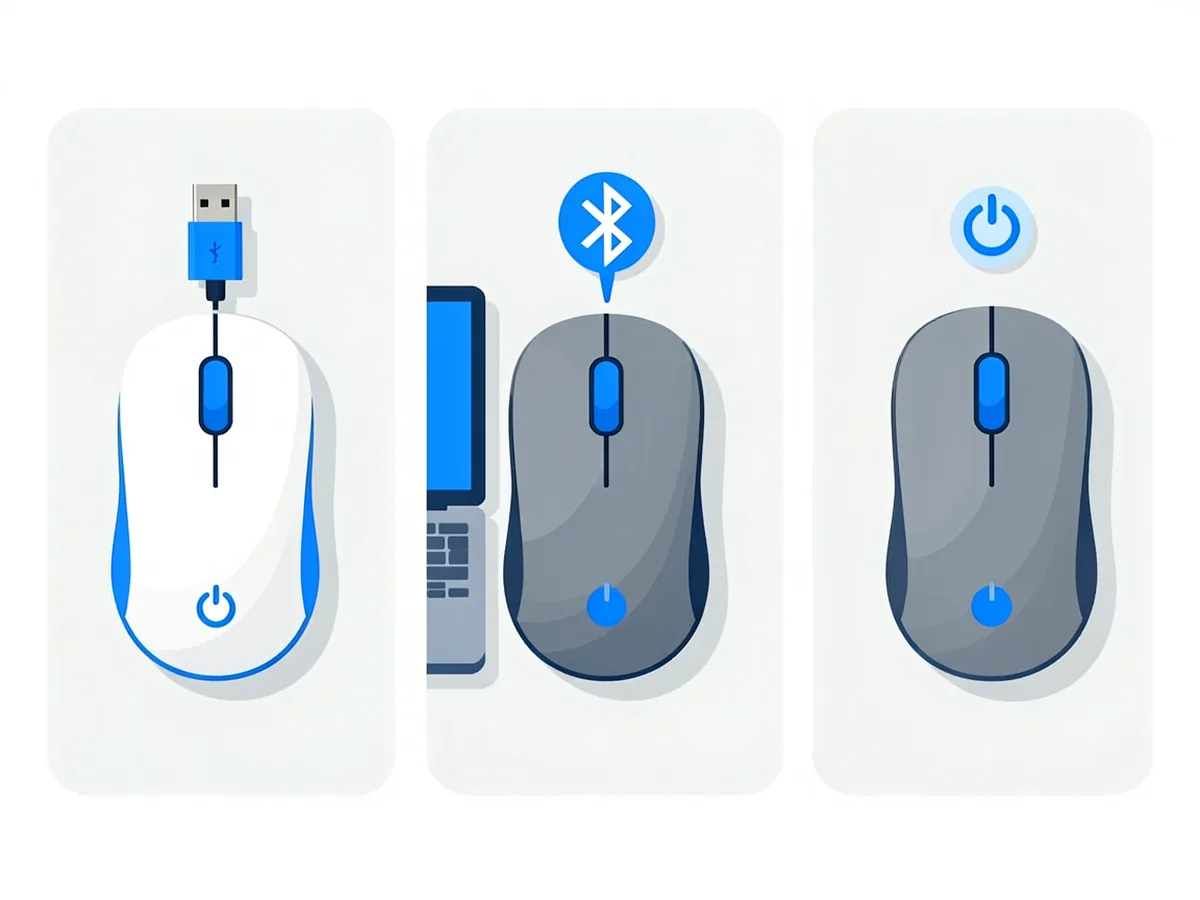
  • 2.4GHz with USB dongle (nano receiver): a small USB stick came in the box or is clipped inside the mouse. Most common and easiest.
  • Bluetooth-only: no dongle in the box; the mouse carries a Bluetooth logo. Pairs directly with your laptop’s built-in Bluetooth.
  • Dual-mode: a small slide switch underneath selects the 2.4GHz or Bluetooth channel — these are popular on newer models.
Three panels showing wireless mouse connection types: USB dongle, Bluetooth pairing and the power switch

How Do You Connect a Wireless Mouse with a USB Dongle?

This is the plug-and-play route — no settings menus involved:

  • Step 1: Open the battery cover, insert fresh batteries (or charge the mouse via its USB cable), and close the cover.
  • Step 2: Slide the power switch underneath to ON. A short light flash confirms power.
  • Step 3: Plug the nano receiver into a USB port on the laptop — directly, not through a hub, for the first connection.
  • Step 4: Wait 5–15 seconds. Windows installs the driver automatically, and the cursor starts moving.
  • Step 5: Move the mouse to test. If nothing happens, see the troubleshooting section below.

That is genuinely all there is to it. The receiver and mouse are factory-paired, so there is nothing to click through. If Windows plays its device-ready chime, you are done.

How Do You Connect a Wireless Mouse via Bluetooth?

Bluetooth mice skip the dongle and free up a USB port — handy on laptops with only two ports. Windows 10 and 11 handle this almost identically (Microsoft’s pairing guide):
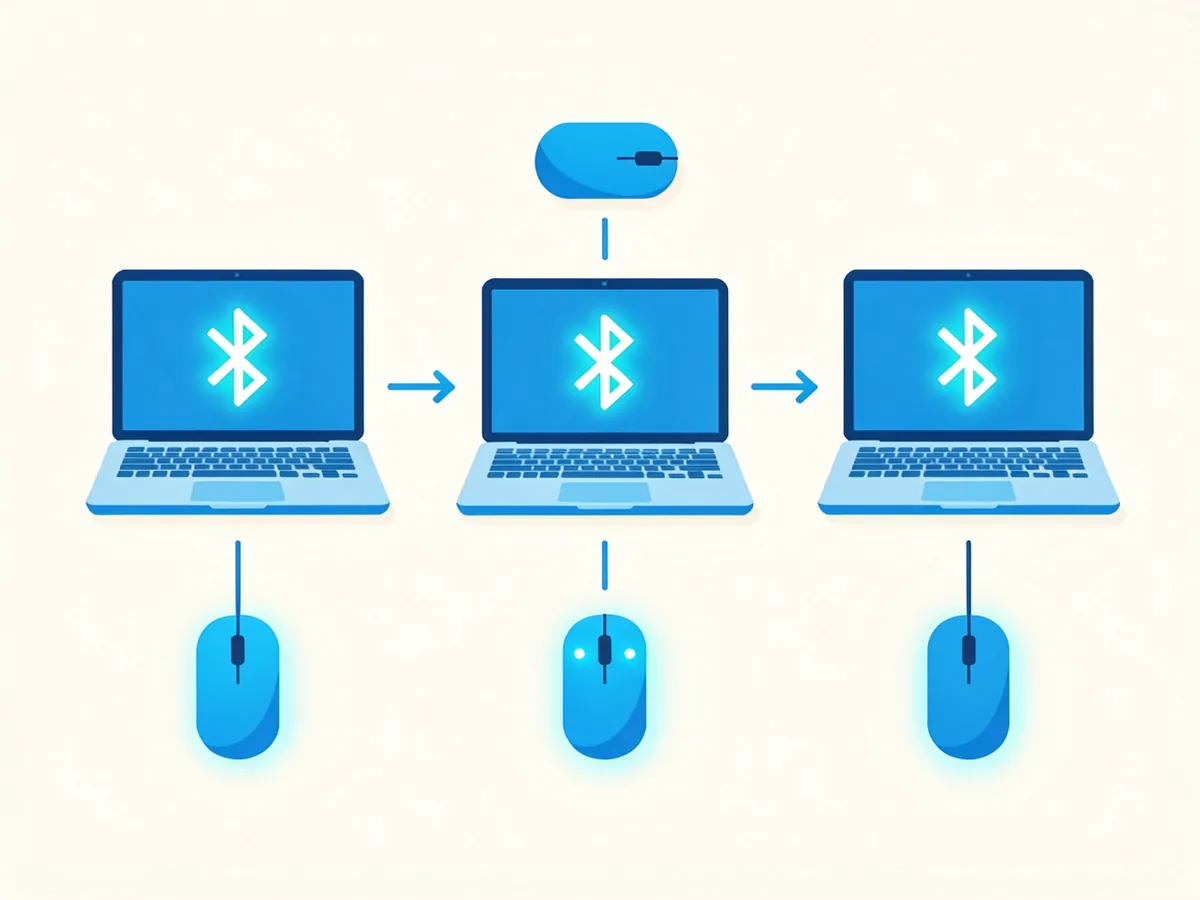
  • Step 1: Switch the mouse on and hold the pairing button (usually underneath) for 3–5 seconds until its light blinks — blinking means it is discoverable.
  • Step 2: On the laptop, open Settings → Bluetooth & devices (Windows 11) or Settings → Devices → Bluetooth (Windows 10) and make sure Bluetooth is On.
  • Step 3: Click Add device → Bluetooth, wait for the mouse’s name to appear, and select it.
  • Step 4: Follow any on-screen prompt, then move the mouse to confirm the cursor responds.
Three-step illustration of pairing a wireless mouse to a laptop over Bluetooth, from pairing mode to connection

On a Mac, open System Settings → Bluetooth, and the same blinking-light rule applies. One quirk to know: a Bluetooth mouse that has already been paired to another laptop will not appear — remove it from the old device first, then pair again.

Why Is My Wireless Mouse Not Connecting?

Nine times out of ten it is one of these five, in this order:
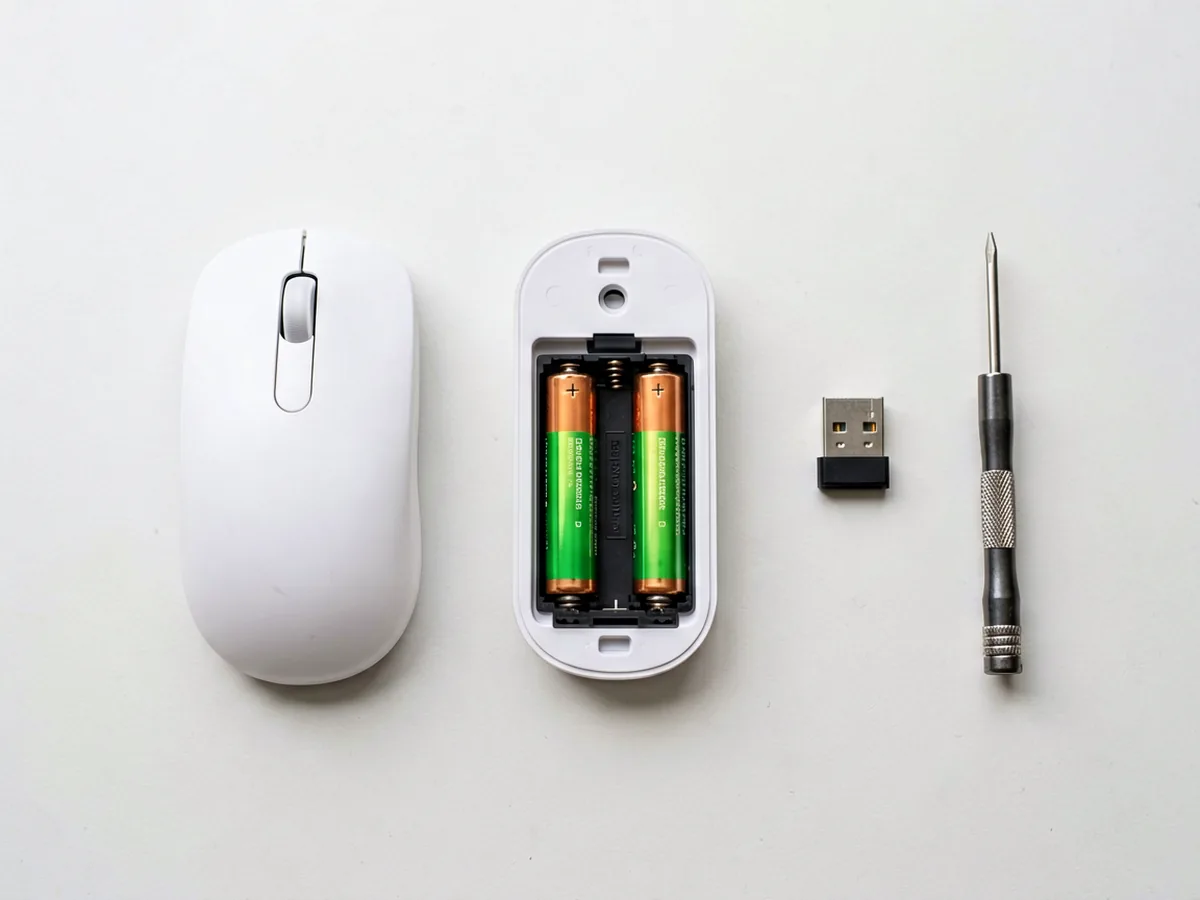
  • Power switch is off or batteries are flat. The number-one cause. Flip the switch, or swap in fresh batteries and watch for the startup light.
  • Dongle in a bad port. Move the receiver to another USB port, directly on the laptop rather than a hub or keyboard passthrough.
  • Lost pairing (Bluetooth). Remove the mouse from the Bluetooth device list and pair it again from scratch (Microsoft’s Bluetooth troubleshooting guide).
  • Interference or distance. Keep the mouse within about a metre for first pairing, away from metal surfaces and USB 3.0 ports stacked with other receivers.
  • Wrong channel on dual-mode mice. The under-switch must match your connection: dongle position for the receiver and Bluetooth position for pairing.
Knolling view of wireless mouse troubleshooting items: mouse with battery cover open, spare batteries, USB receiver and small screwdriver

If the mouse pairs but the cursor stutters or lags, a weak battery is still the usual suspect — wireless mice sleep after a few idle minutes to save power, and a dying cell makes the wake-up sluggish. Microsoft’s own mouse troubleshooting notes the same sleep behaviour on Bluetooth devices (Microsoft accessory troubleshooting).

USB Dongle or Bluetooth: Which Should You Use?

2.4GHz USB dongleBluetooth
SetupPlug in and go — no pairingPair once via settings.
Uses a USB portYes, one port permanentlyNo
LatencySlightly lower — better for gamingFine for office and browsing
Works without BluetoothYes — any laptop with USBNeeds built-in Bluetooth or an adapter
Travel-friendlinessA dongle can get lost — store it inside the mouseNothing to lose

Practical rule for South African buyers: if your laptop is short on USB ports or you travel a lot, Bluetooth wins. If you want zero-fuss setup or play games, take the dongle. Dual-mode mice give you both — pair them once via Bluetooth at home and keep the dongle in the bag as a backup.

What If Your Laptop Has No Bluetooth?

Older budget laptops sometimes ship without Bluetooth. You have two options: get a USB Bluetooth adapter (small, cheap, and plugs into any USB port) or simply stick to a dongle-style mouse. Check first, though — in Windows, open Device Manager and look for a Bluetooth entry; many laptops have it even when the sticker does not mention it.

Frequently Asked Questions

Why won’t my wireless mouse connect to my laptop?

Check the power switch and batteries first — they cause most failures. Then reseat the USB dongle in a different port, or for Bluetooth mice, remove the device from the Bluetooth list and pair again. Dual-mode mice must have the channel switch set to match how you are connecting.

Can I connect a wireless mouse without the USB receiver?

Only if the mouse supports Bluetooth. Dongle-style 2.4GHz mice are factory-paired to their receiver and cannot pair to the laptop’s Bluetooth. Dual-mode mice can do both — flip the switch underneath to the Bluetooth position and pair through the settings.

How do I put my wireless mouse in pairing mode?

Switch it on, then press and hold the pairing button underneath for 3–5 seconds until the light blinks. A blinking light means the mouse is discoverable; a steady or dark light means it is not.

Do wireless mice work with any laptop?

Dongle mice work with any laptop that has a USB port — Windows and ChromeOS install them automatically. iPads only work with Bluetooth mice. Bluetooth mice need built-in Bluetooth, which almost every Windows 10 and 11 laptop has.

Why does my wireless mouse keep disconnecting?

Low batteries, a congested USB 3.0 port next to the receiver, or distance beyond a few metres are the usual causes. Swap batteries, move the receiver to a front port or use a small extension, and keep other wireless receivers away from it.


Discrepancy Notice: Our online shop is still under preparation. Product prices, availability and shipping options are subject to change. This article is for informational purposes only — please contact us at support@potatotech.co.za for the latest information.

Setting up a full workspace? Read our USB-C hub buying guide, our 24″ vs 27″ monitor guide, or our fix for a monitor with no signal.

Sources

About This Guide

POTATOTECH publishes research-based guidance on electronics repair, replacement parts, tools and device compatibility for South African users. Our content may reference manufacturer documentation, product specifications, technical repair resources and South African market information where relevant. Where POTATOTECH has not independently tested a product or repair method, researched information is not presented as first-hand testing. About POTATOTECH: /about-us/

Important

POTATOTECH provides information about replacement parts, repair tools and device compatibility. POTATOTECH is not affiliated with or endorsed by device manufacturers unless explicitly stated. Product names, trademarks and brands belong to their respective owners. Compatibility information is provided as guidance. Always confirm the exact device model, model number and relevant part specifications before selecting or purchasing a replacement part. Repair information is provided for general informational purposes. Follow manufacturer guidance and appropriate safety precautions when carrying out repairs.

Leave a Reply

Your email address will not be published. Required fields are marked *

Related Articles

iPhone Back Glass Replacement: A Complete South African Guide (2026)

iPhone Back Glass Replacement: A Complete South African Guide (2026)

Cracked iPhone back glass? Learn DIY vs professional replacement costs in South Africa, how long it takes, and when to seek help.

iPad Screen Replacement Cost in South Africa (2026): Complete Guide

iPad Screen Replacement Cost in South Africa (2026): Complete Guide

How much does an iPad screen replacement cost in South Africa? Compare DIY vs professional repair costs for all iPad models.

How to Choose Bluetooth Headphones in South Africa (2026)

How to Choose Bluetooth Headphones in South Africa (2026)

Choosing the right Bluetooth headphones in South Africa isn’t just about picking the first pair you see. Whether you’re commuting on the Gautrain, working from home, or gaming online, the right headphones make a real difference to your experience—and your wallet. This guide breaks down what actually matters when you’re shopping for wireless headphones in […]