
Phone screen flickering is commonly caused by adaptive brightness or refresh-rate settings, an app or software fault, unstable charging power, a loose display connector, panel damage, battery pressure, water or a previous repair. In South Africa, test the phone away from load-shedding switchover and cheap chargers, then move from software checks to hardware assessment. Permanent lines, heat, swelling, liquid exposure or ghost touches are reasons to stop DIY.
Your screen is blinking, pulsing, or flashing lines, and the phone is nearly impossible to use. Here is the counterintuitive truth first: in most cases phone screen flickering is not a broken screen. It is a software glitch, a display setting, or a power problem — all fixable at home in minutes. This guide works through the causes in the order that sorts them fastest: read your flicker pattern, rule out software, check the charging setup, and only then confront the hardware possibilities. By the end you will know whether this is a two-minute settings fix or a screen replacement decision.
Flickering is a symptom, not a diagnosis — and the pattern points to the cause. Match what you see against these four profiles before touching any settings:
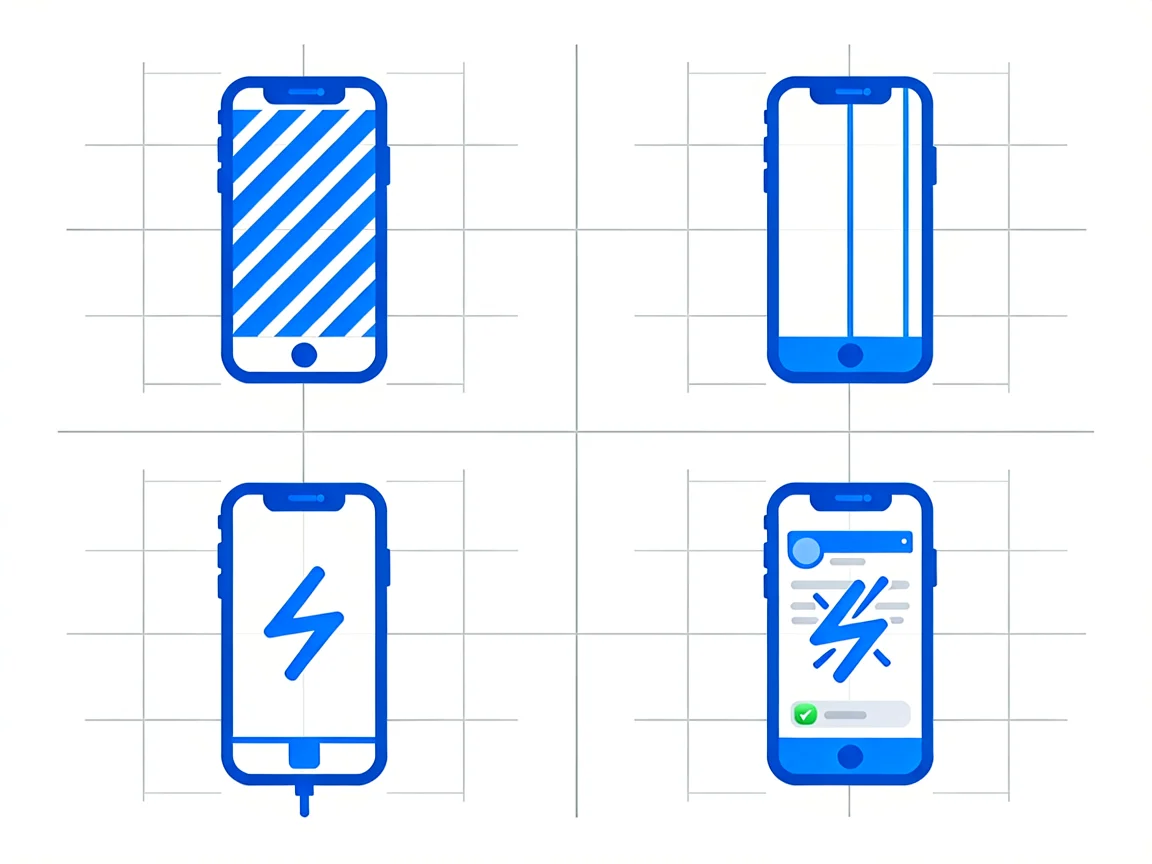
One more distinction worth learning: flickering is rapid — pulsing brightness, strobing, bands rolling — while a screen that is simply dim, discoloured, or dead in patches is a different fault family entirely. The fixes below target true flickering.
Work through these in order — each takes a minute or two, and together they clear the majority of whole-screen flicker cases:
If the screen still flickers in safe mode, with everything updated and after a restart, the cause is almost certainly hardware or a deeper system setting — continue below.
Three settings account for a remarkable share of “my screen keeps flickering” reports, and all three are reversible in under a minute:
One deeper Android option exists: in Developer options, enable “Disable HW overlays”. This forces the GPU to handle all screen rendering and has rescued many flickering phones outright. Enable developer options by tapping Build number seven times in Settings → About phone, then find the toggle under hardware-accelerated rendering. The trade-off is slightly higher battery drain, so treat it as a diagnostic step first — if it stops the flicker permanently, keep it on; if not, turn it back off.
If the dance only happens with a cable connected, look at the power chain before blaming the phone. A frayed cable, a bent connector, or a no-name charger with unstable output can inject enough electrical noise to visibly disturb the display — and a port already half-full of lint makes the connection worse. Swap in a known-good cable and charger and the flicker usually vanishes; if the port itself is damaged or clogged, our phone charging port guide covers the cleaning and repair path in detail.
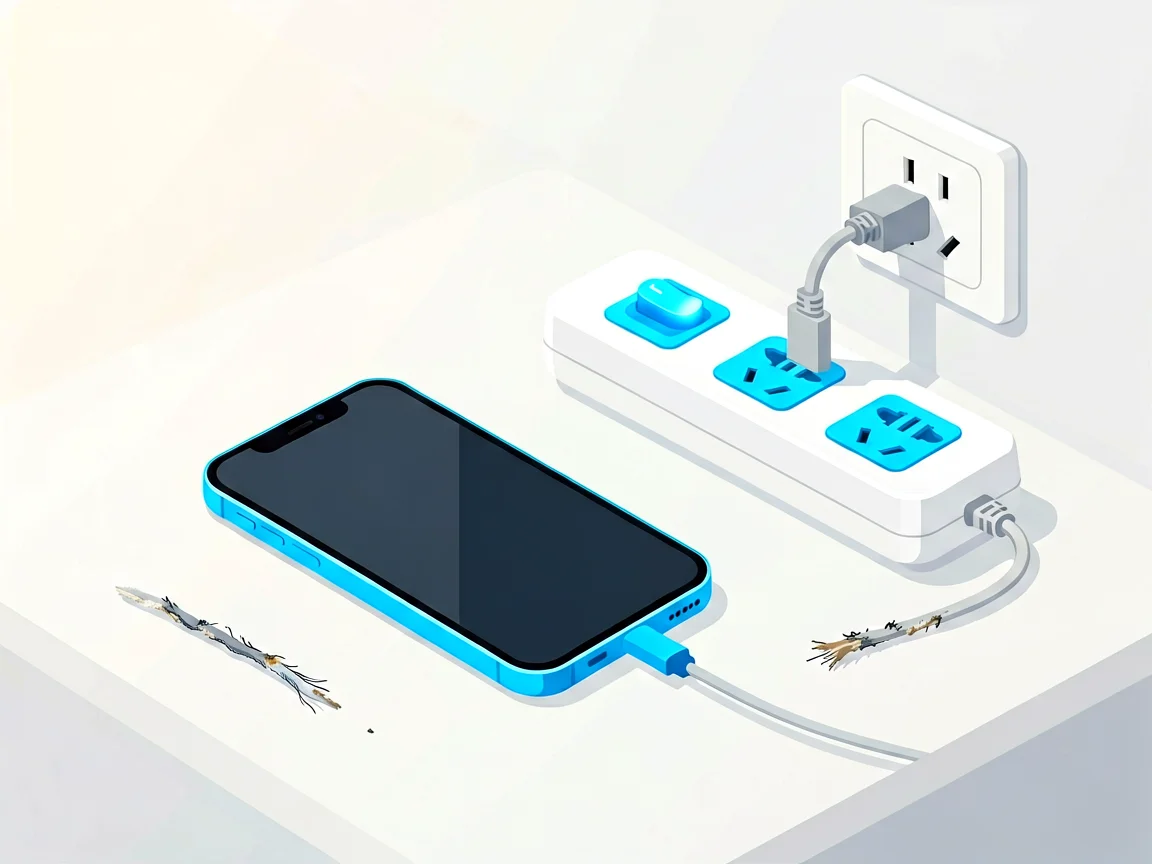
South African households have a specific version of this problem: load shedding. Every stage drop and re-connection sends voltage spikes and dips through the grid, and charging through a cheap multi-plug during those swings is a recipe for electrical noise — flickering screens today, damaged charging ICs later. Plug the charger into a surge protector rather than a bare wall socket or daisy-chained extensions, avoid charging during the switchover minutes, and retire any cable that only works at a certain angle.
When flickering begins right after a physical event, the software checks above will not help — but the good news is the fault is often still repairable without a new panel:
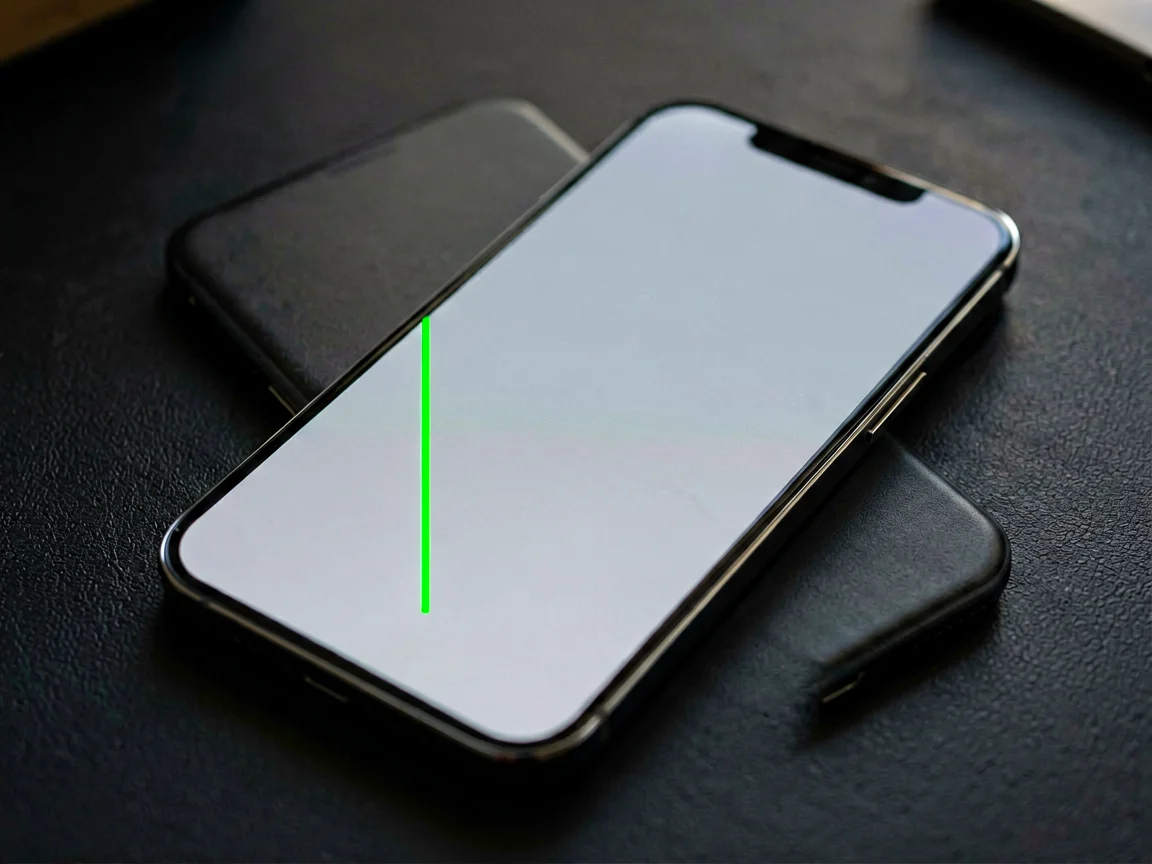
Green is the colour that matters most in screen diagnostics. A solid green tint or a thin green line down the edge is a display-panel or display-IC fault — on OLED phones the green line phenomenon is well documented as panels age or after thermal stress, and it will not respond to any software fix. A brief green flash during startup that then settles, on the other hand, is often just the panel initialising and is harmless. The rule of thumb: permanent lines or tints = hardware, transient flashes = usually benign. If the lines come with flickering that worsens weekly, the panel is on its way out, and the sections below apply.
Test one more thing before concluding hardware: connect the phone to an external display or take a screenshot and view it on another device. If the screenshot looks perfect while the physical screen flickers, the display hardware is confirmed as the problem — the phone’s brain is rendering fine, the panel is not showing it faithfully.
If flickering survives every software fix, shows permanent lines, or follows a drop with visible damage, the panel or its connector needs professional attention — and on most modern phones the panel and the glass are a single assembly, so the repair is a screen replacement. Before booking anything, reread the repair-vs-replace decision guide: for an older phone, a full-screen assembly can be a large fraction of the device’s remaining value.
On South African pricing: quotes vary by shop, by model and by part grade, so always request a written quote before authorising work — screen parts range widely between original, OEM-copy and budget grades, and the cheapest panel is often the one that flickers again within months. Most shops charge an assessment fee, commonly in the R250–450 range, usually deducted from the repair cost if you proceed. Ask two questions before handing the phone over: what part grade does the quote cover, and what warranty applies to the repair itself?
If you are comfortable opening phones, a connector reseat is a realistic DIY job with a basic precision kit, and the model-specific teardowns on iFixit’s Android pages (or its iPhone equivalents) show the exact steps. But if the panel itself is dead, weigh the part cost against our essential repair tools guide and your own experience level — a slipped tool on a flex cable turns a screen job into a motherboard job. For a second opinion on the fault before spending, use our Contact page with your phone model and what you have already tried.
Some symptoms should stop the DIY path immediately:
Why is my phone screen flickering on Android?
On Android the most common causes are adaptive brightness fighting the light sensor, adaptive refresh-rate switching, a buggy app, or an OS-level display-driver glitch. Force-restart, install updates, turn off adaptive brightness, fix the refresh rate at 60 Hz and test in safe mode. If flickering survives all of that, enable “Disable HW overlays” in Developer options — if that stops it, the graphics pipeline was the problem.
How do I fix a Samsung phone screen flickering?
Run the Android checks above with Samsung’s menu names: Settings → Display → Adaptive brightness off, Motion smoothness set to a fixed refresh rate, and Eye comfort shield disabled while testing. If the flicker appeared after an update, wait for the next patch — Samsung display bugs are commonly fixed in hotfix releases. Persistent flicker on a Samsung with lines or tint needs a service assessment.
Why does my phone screen flicker only while charging?
That pattern points to the power chain: a worn cable, a cheap charger with unstable output, or a dirty or damaged port. Swap to a known-good cable and charger first. In South Africa, also charge through a surge protector — load-shedding switchover spikes make noisy power a local staple, and charging during the switchover minutes makes flicker worse.
My screen flickers after a screen replacement — what now?
Two likely causes: the replacement panel is a low-grade or non-original part, or its connector was not fully seated. Return to the repairer with the fault demonstrated on a white screen at full brightness — ideally the same day as the repair. If the phone is out of the shop’s warranty, our guide to spotting a non-original iPhone screen helps you confirm the part quality.
Can a flickering screen fix itself?
Software-caused flicker often disappears after a restart or an OS patch — which can feel like self-healing. Hardware flicker never fixes itself; it worsens as connectors corrode or panels degrade. If the flicker has lasted more than a few days despite restarts and updates, treat it as hardware and get a written quote.
How much does it cost to fix a flickering screen in South Africa?
It depends on the model and part grade, so request a written quote — assessment fees of R250–450 are common and usually deducted from the repair if you proceed. A connector reseat costs far less than a full-screen assembly; ask the shop to quote both if the fault might be the connector. Compare two quotes for anything beyond a routine repair.
More display and power guides from our hub:
Disclaimer: This guide is for general information only. Repair steps carry risk; if you are unsure, consult a qualified technician. Prices and fees mentioned reflect publicly advertised ranges at the time of writing and may vary. POTATOTECH is not responsible for damage arising from DIY repairs.
For related diagnosis, read our guide to a phone charging port that is not working, iPhone screen replacement costs and phone battery replacement costs. If you need tools, browse the repair tools category.
For a second opinion before spending on parts, use our Contact page with the phone model and symptoms.
If you searched for a blinking phone screen or flashing phone screen, start with restart, updates, adaptive brightness and a known-good charger. Permanent lines, heat, swelling, liquid exposure or ghost touches need professional assessment.
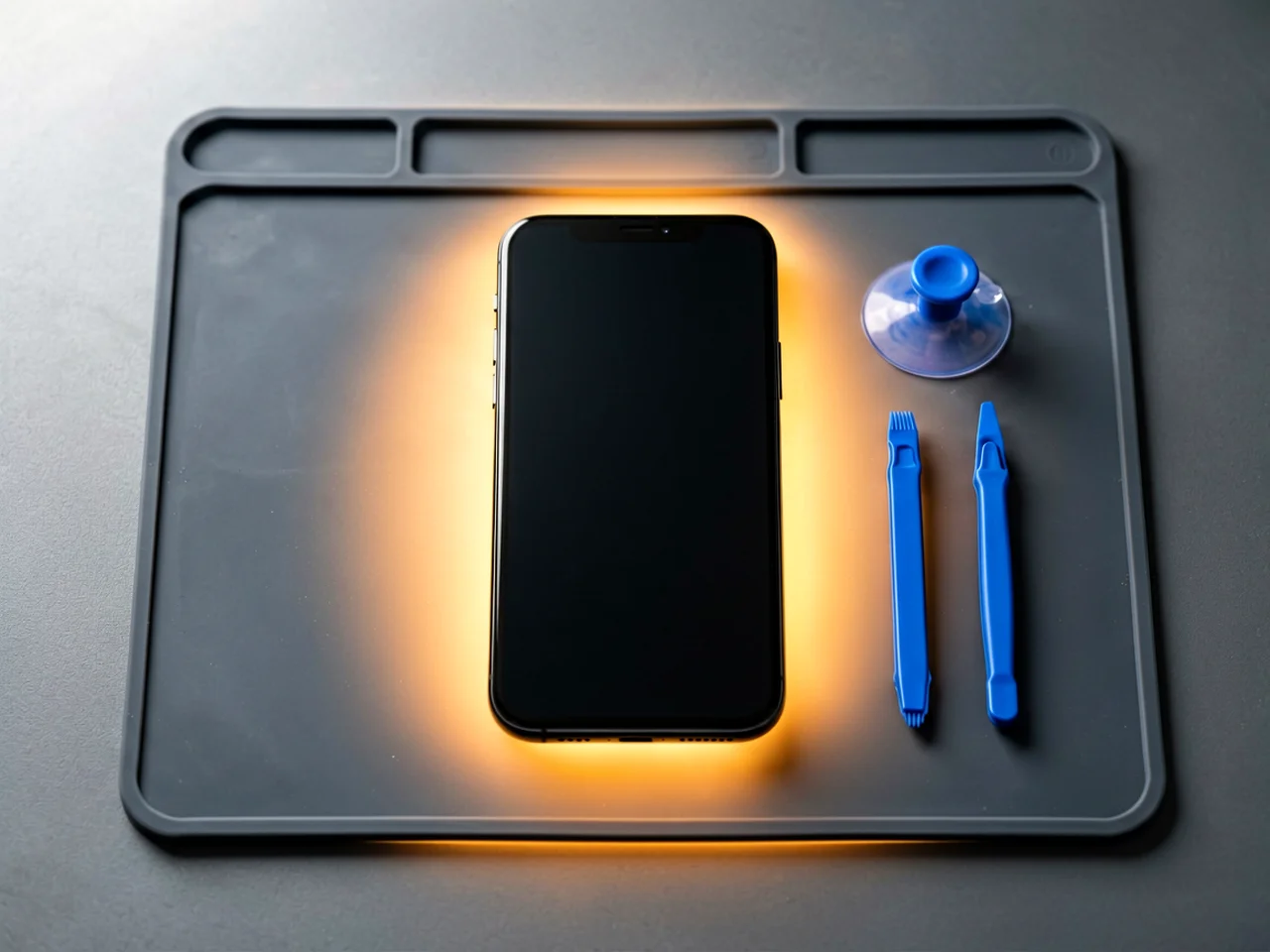
Most cracked phone panels don’t come from a shaky hand. They come from the wrong temperature. Heat the adhesive too little and the glass fights you until it snaps. Heat it too much, or in one spot, and you cook the panel underneath instead — which is how “repair” turns into “replace”. This guide is […]

You tap an app and nothing happens for ten seconds, then the whole screen freezes mid-animation. You wait, you tap again, the phone buzzes once and sits there. Sometimes a restart clears it for a day, sometimes it freezes again as soon as you open WhatsApp, and sometimes it started after an update or when […]

You open Maps or your taxi-hailing app, and the blue dot never settles, or it places you three streets away. You stand outside with a clear sky above you, and the phone still takes minutes to lock on, or it locks on and then drops your position into the middle of a field. Sometimes the […]
3 responses